
How to add a new supplier?
Here's a step-by-step guide to adding a new supplier to your salon software.
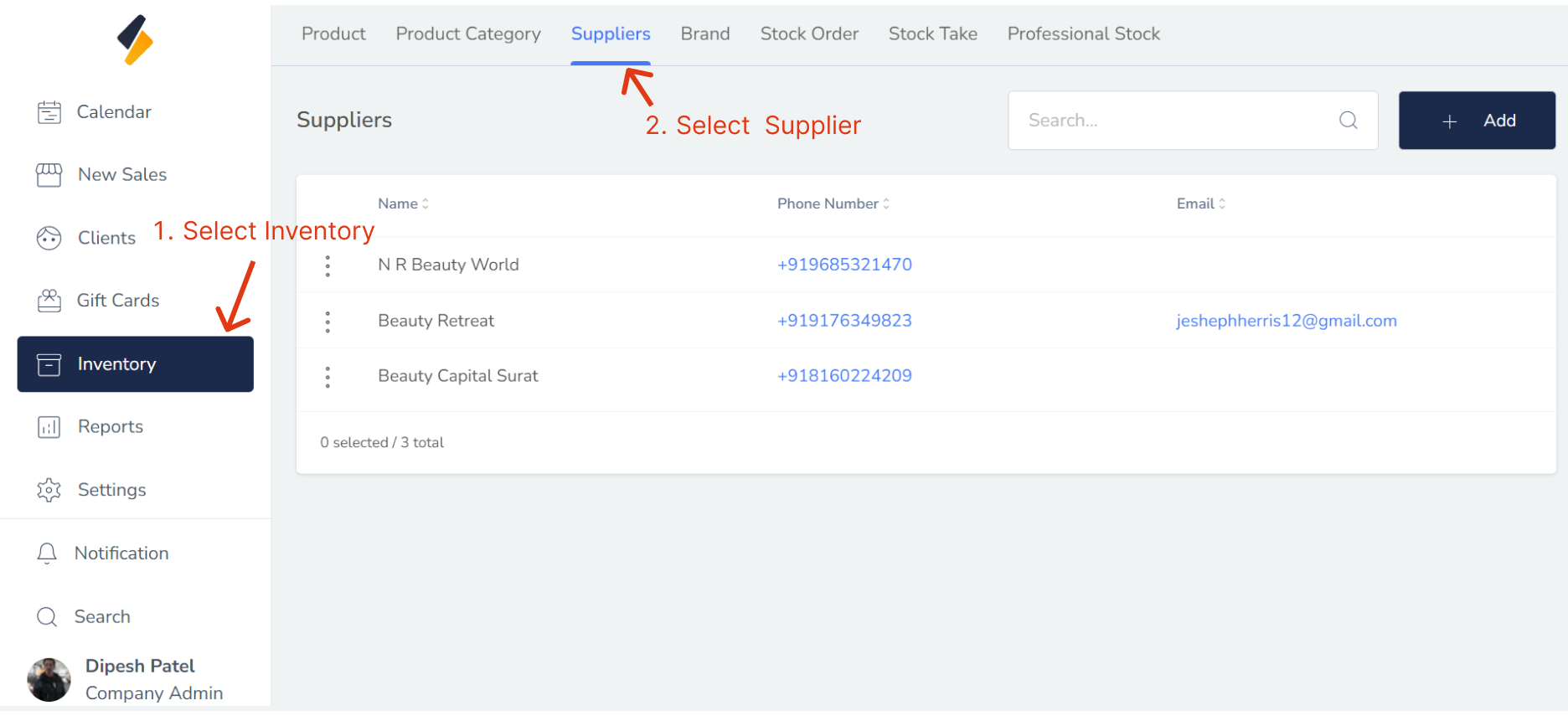
1. Navigate to the Supplier Option:
- Once you have logged in, Select the Inventory option from the sidebar.
- Click on the Supplier tab to view the list of available supplier.
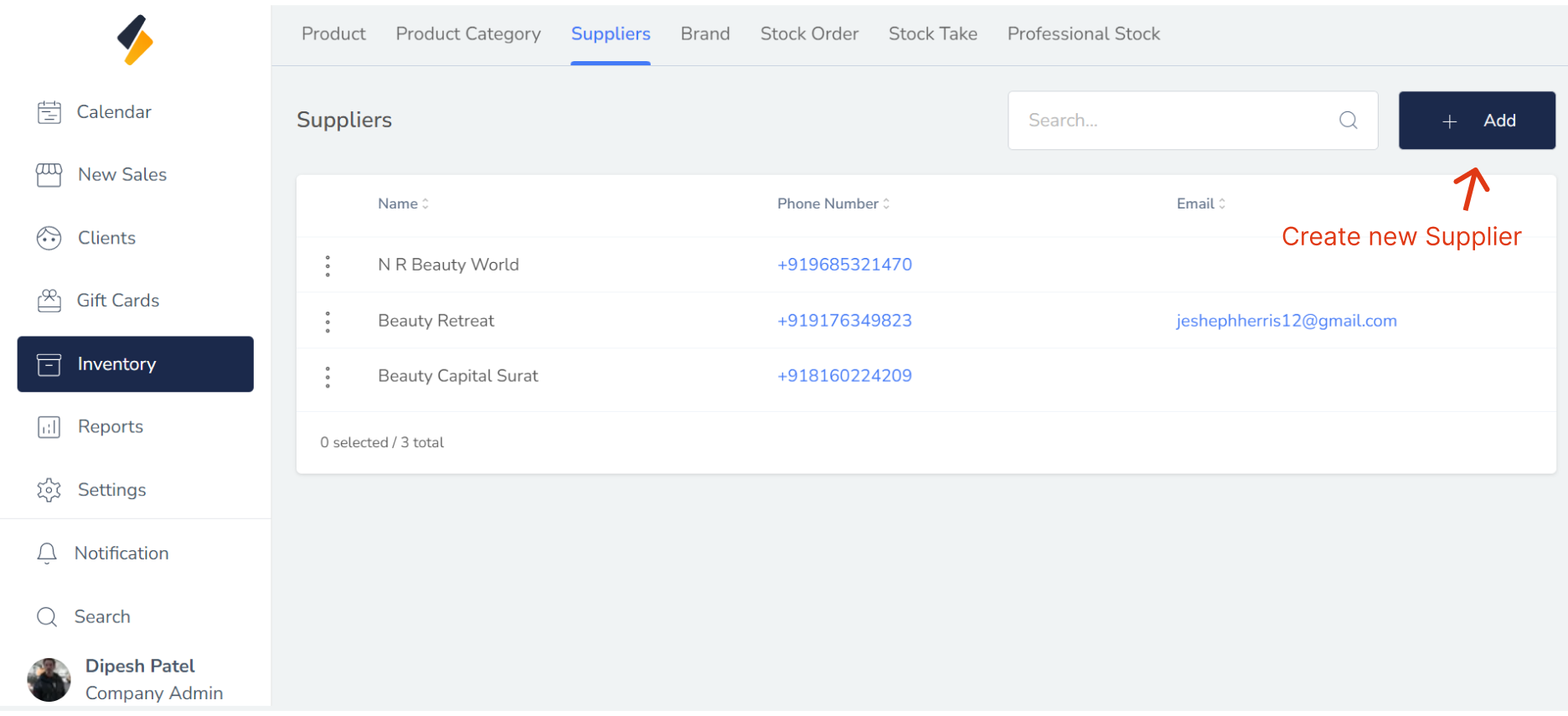
2. Add a New Supplier:
Click on the "+Add" button to add a new supplier to the list.
3. Fill in the necessary Supplier details:
Enter all the required details such as Supplier name.
-
Supplier Name : Supplier name or company name
-
Contact Person Name: : A general Name of Supplier
-
Email: This field is used to input the supplier's email address.
-
Phone No: This field is used to input the supplier's phone number.
-
Website: This field is used to input the supplier's website.
-
Description: This field is used to input the description.
-
Address: This field is used to input the user's postal or physical address.
Make sure to double-check that all information is accurate and up-to-date.
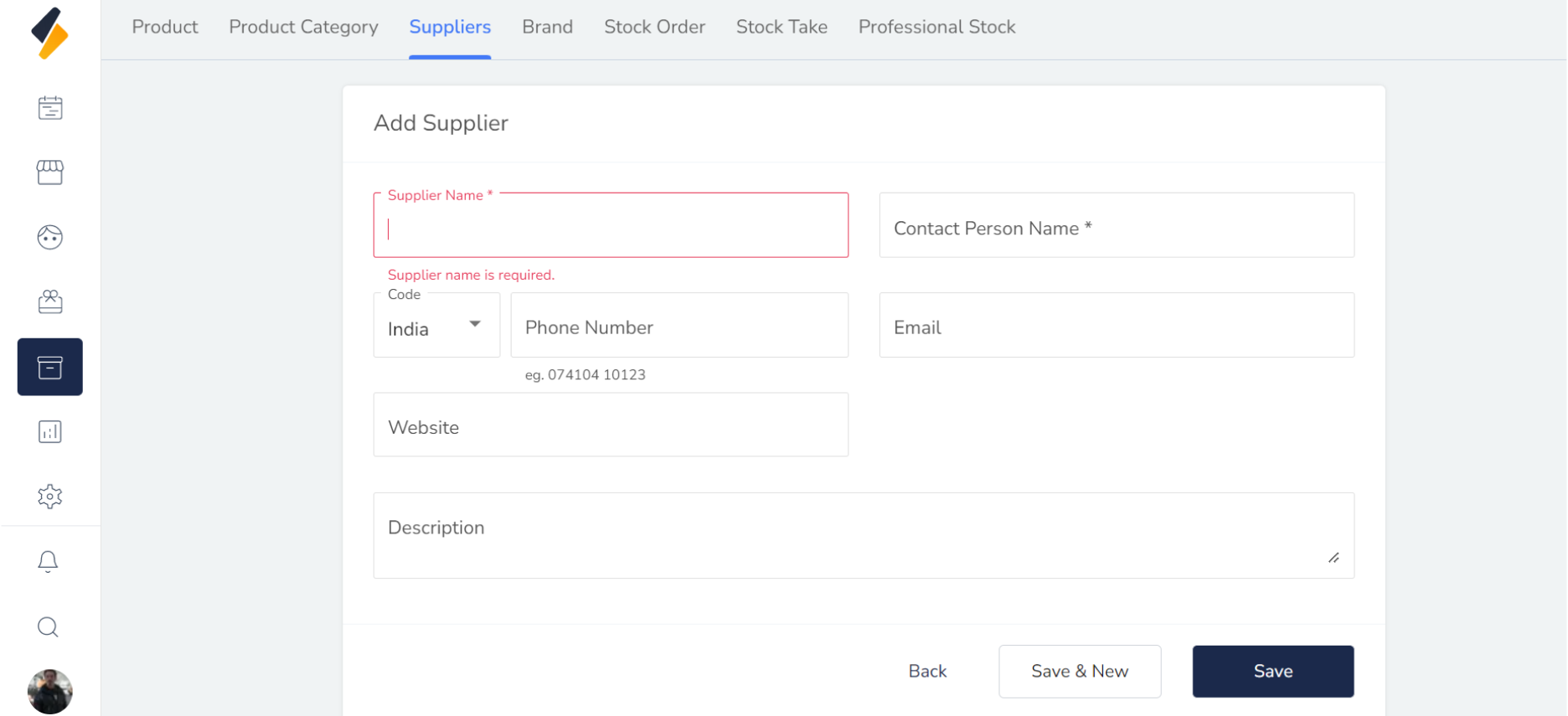
5. Click on the "Save" button
Finally, click on the "Save" button to save the new supplier along with all its details.
By following these steps, you can easily add a new Supplier to your list and manage it efficiently.