
How to edit a stock take?
Follow these instructions to edit a Stock Take in the salon software:
1. Navigate to the Stock Take Option:
- Once you have logged in, Select the Inventory option from the sidebar to open the Stock Take page.
- Click on the Stock Take tab to view the list of available Stock Take.
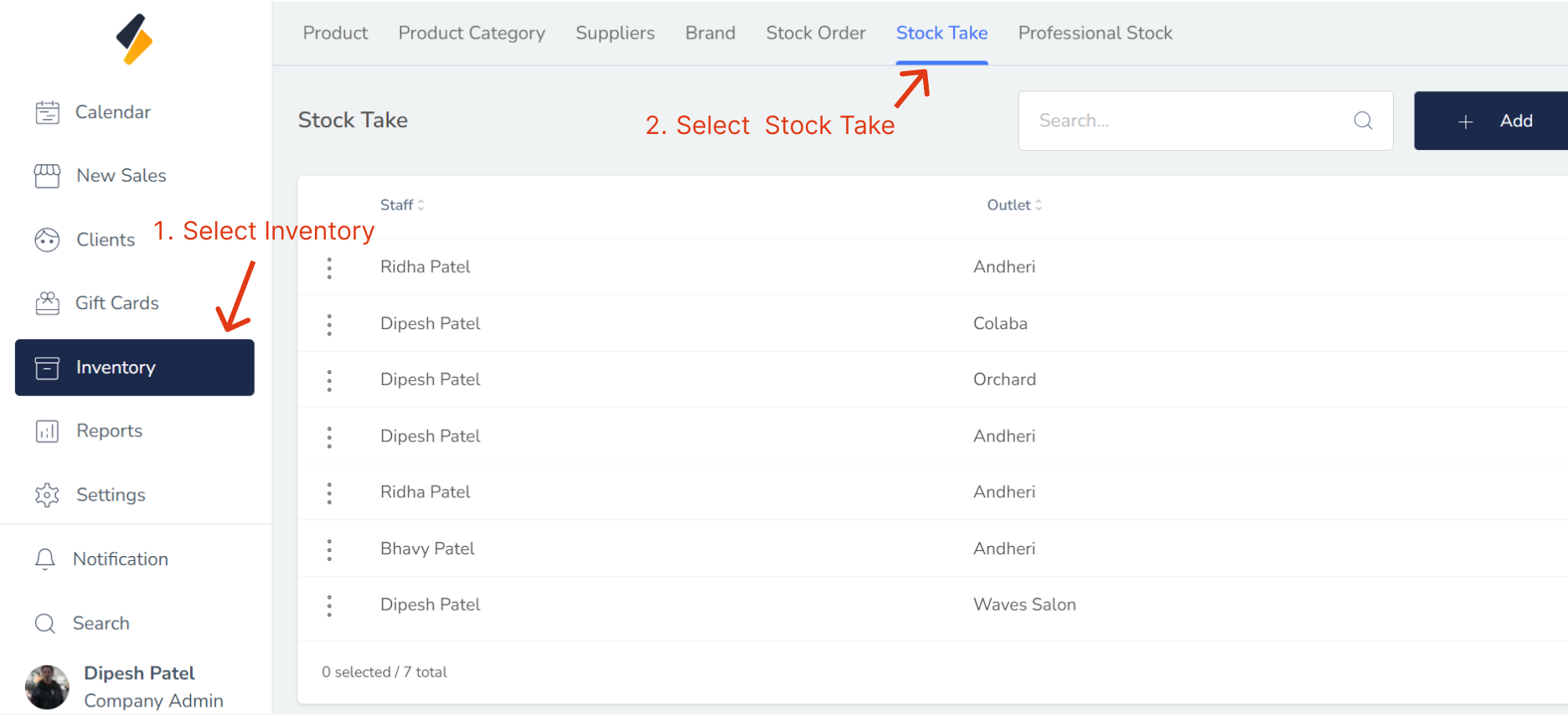
2. Select the Stock Take to Edit:
Locate the Stock Take that you want to edit in the Stock Take list.
Click on their name or select "Edit" option.
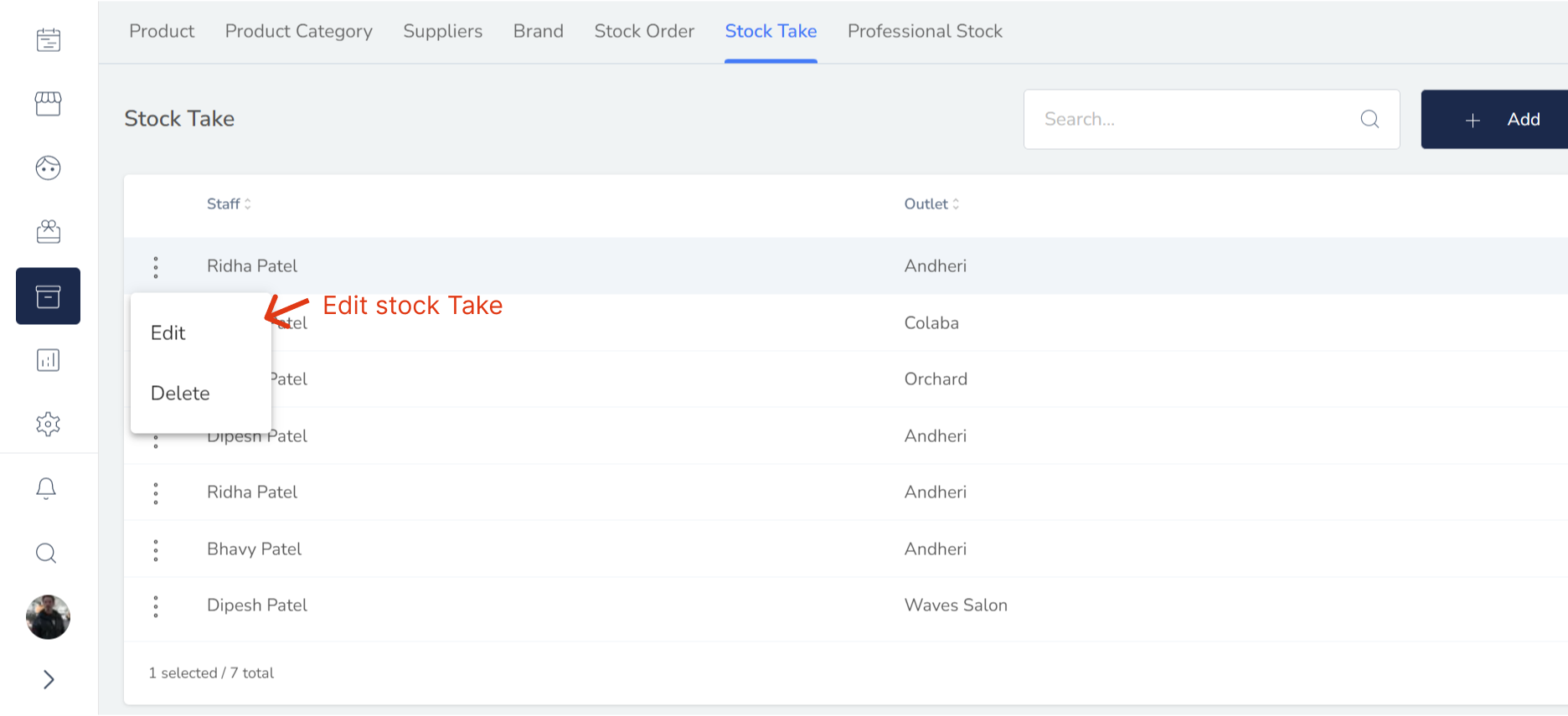
3. Edit the Stock Take Information:
- Once you have selected the Stock Take to edit, you should be able to see their existing information. Edit the Stock Take information as needed.
- you can also add another product or edit stock of existing product.
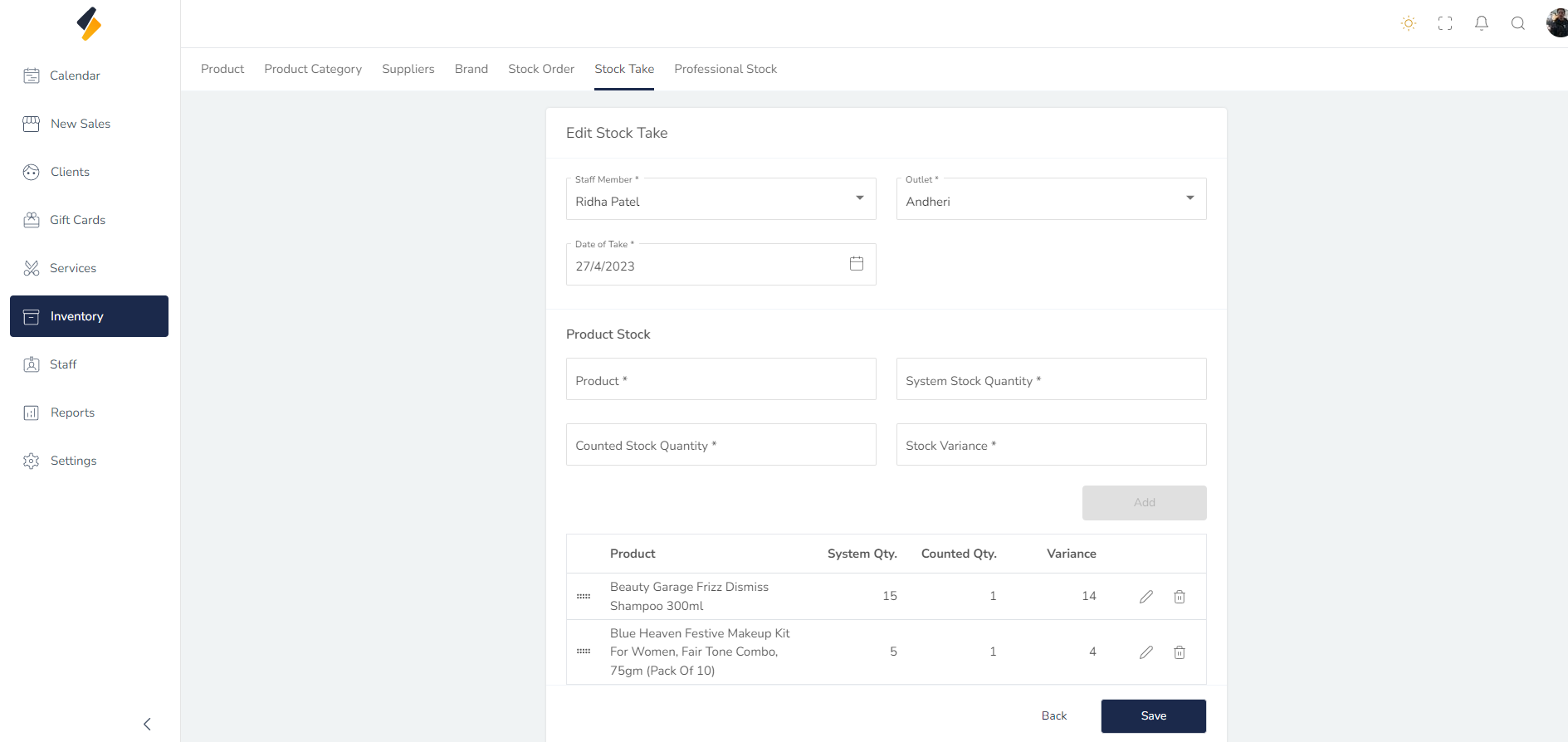
4. Save the Stock Take Information:
Once you have made all the necessary changes, click on the "Save" button. This will save the updated Stock Take information to the salon software.
Congratulations! You have successfully edited a Stock Take in the salon software.