
How to view a stock order list?
Follow these instructions to view a stock order in the salon software:
1. Navigate to the Inventory Option:
- Once you have logged in, Select the inventory option from the sidebar to open the stock order page.
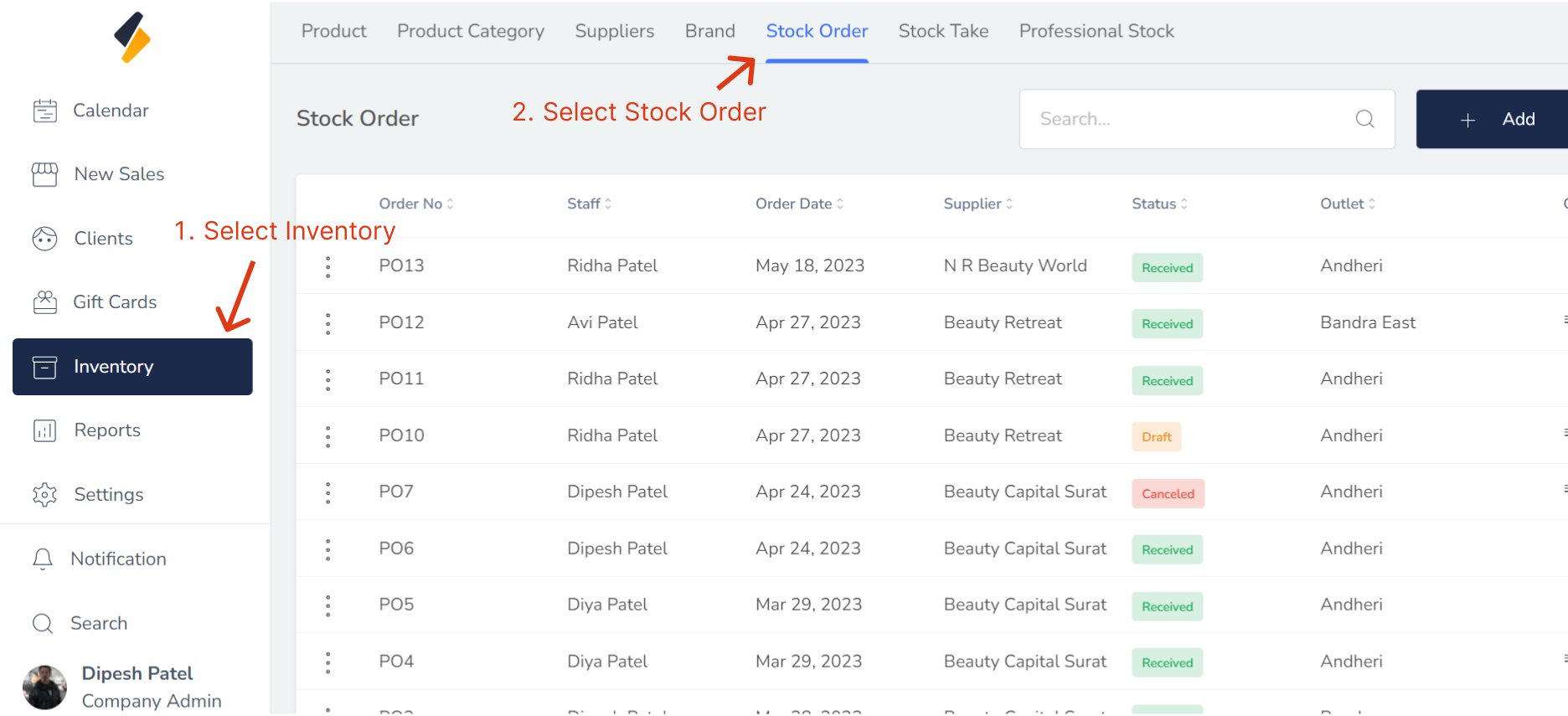
2. Click on Stock Order Tab.
All stock order list are show in tabular form.
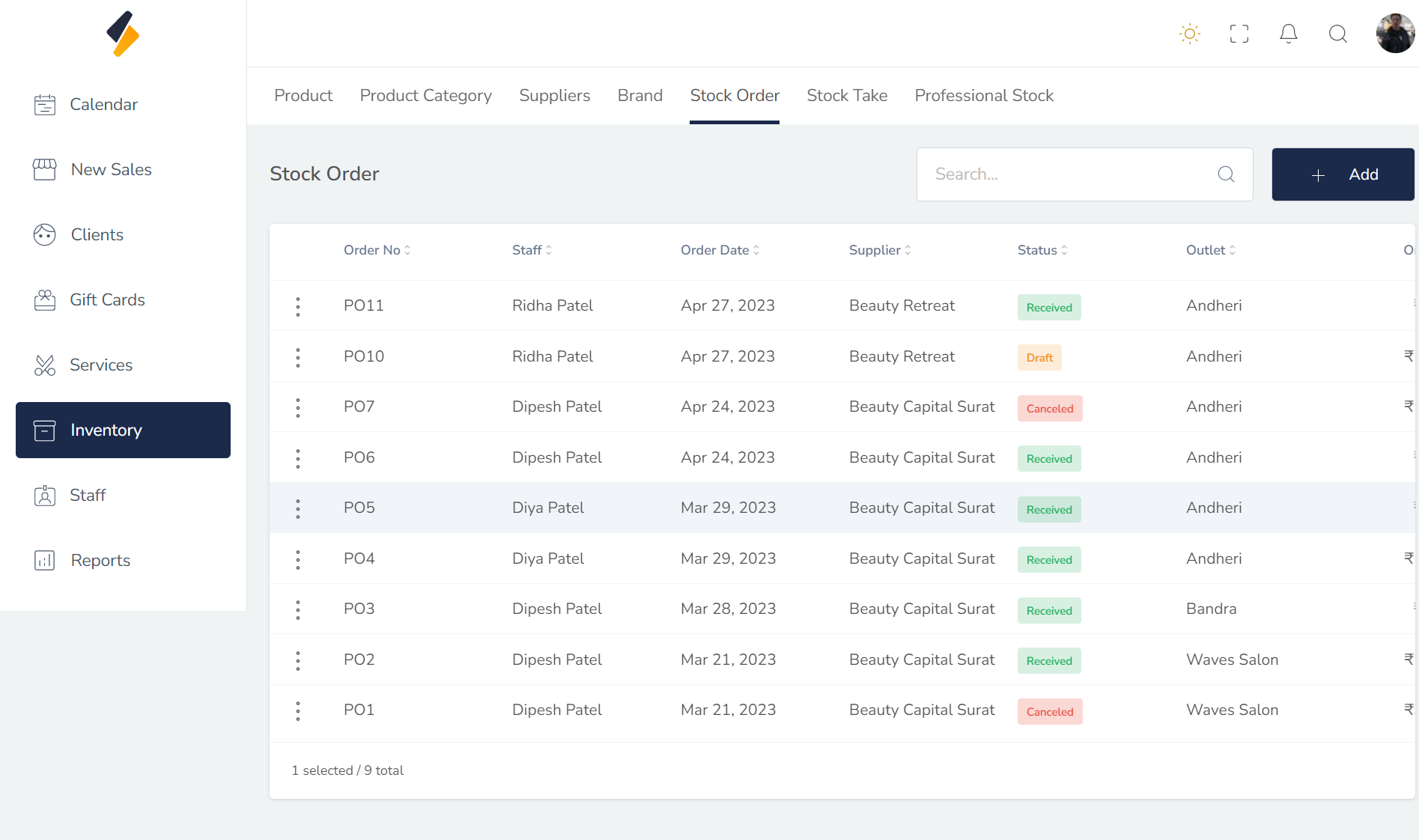
The actions that can be performed based on the status of a stock order list are as follows:
-
If the status is "Ordered," then we can confirm the order. This means that the order has been placed and is awaiting delivery.
-
If the status is "Draft," then we can edit the order. This means that the order has not yet been placed and can still be modified.
-
If the status is "Received," then we can view the [Received order](../stock-order/view-stock-order.md#View Receive Stock order). This means that the order has been delivered and we can check the details of the items received.
-
If the status is "Cancelled," then we can view the [cancelled order](../stock-order/view-stock-order.md#View Cancel Stock order). This means that the order has been cancelled and we can check the reason for the cancellation.
It is important to note that the actions that can be taken may vary depending on the specific system or process being used