How to confirm a stock order?
Follow these instructions to confirm a stock order in the salon software:
1. Navigate to the Inventory Option:
- Once you have logged in, Select the inventory option from the sidebar to confirm the stock order page.
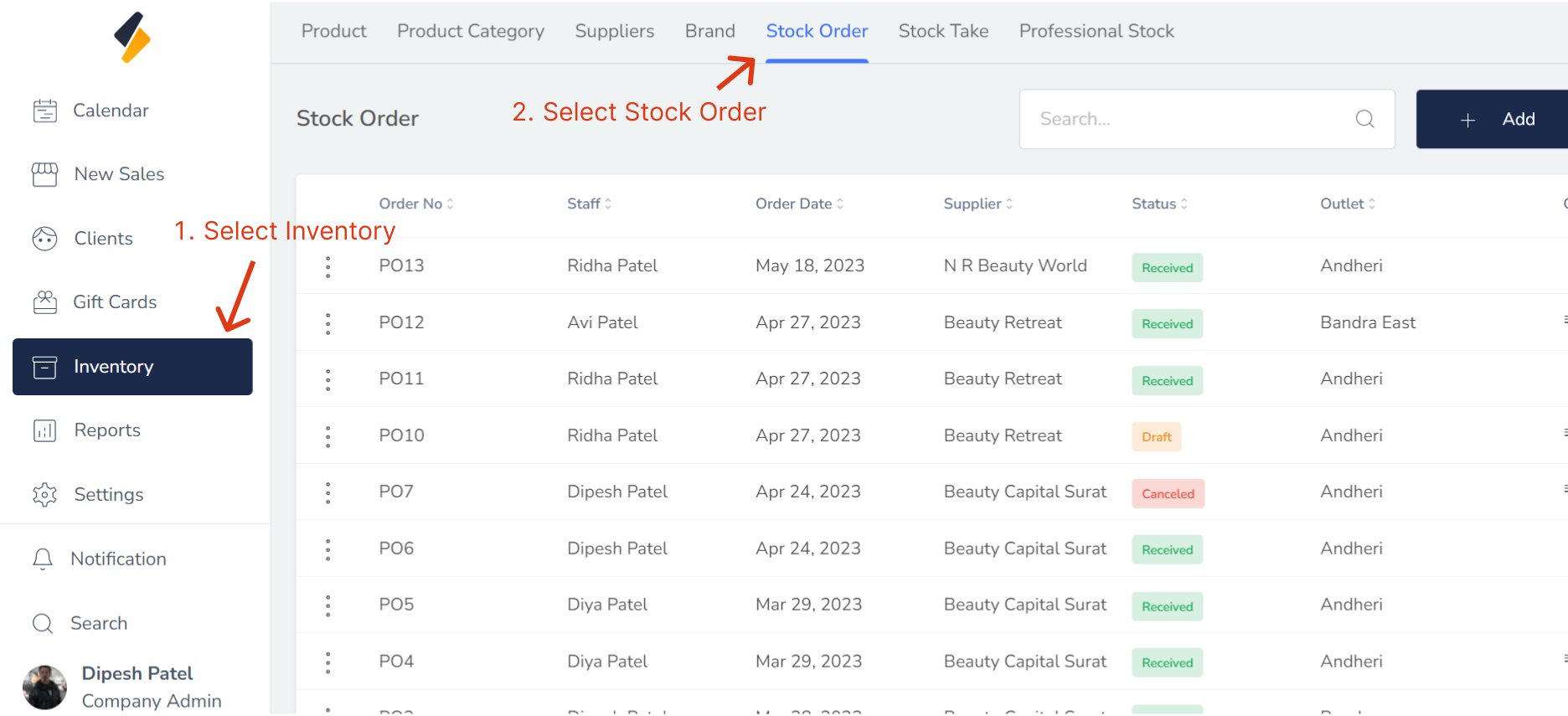
2. Click on Stock Order Tab.
All stock order list are show in tabular form.
- If the status of product is "Ordered," then we can confirm the order.Then select "Confirm Order" option of that stock order from list.To confirm an order for a product that is marked as "Ordered," you can select the corresponding stock order from the list and choose the "Confirm Order" option
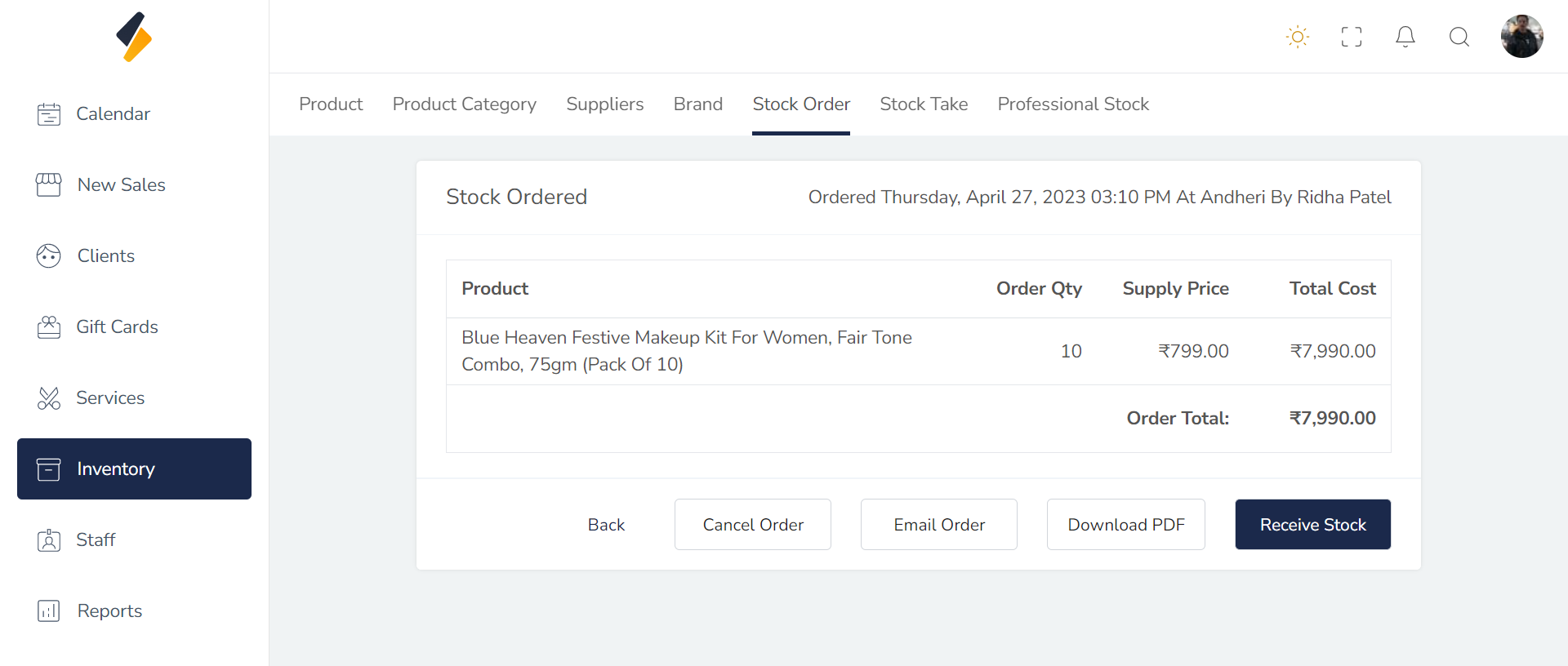
There are several options available for managing the stock order, including:
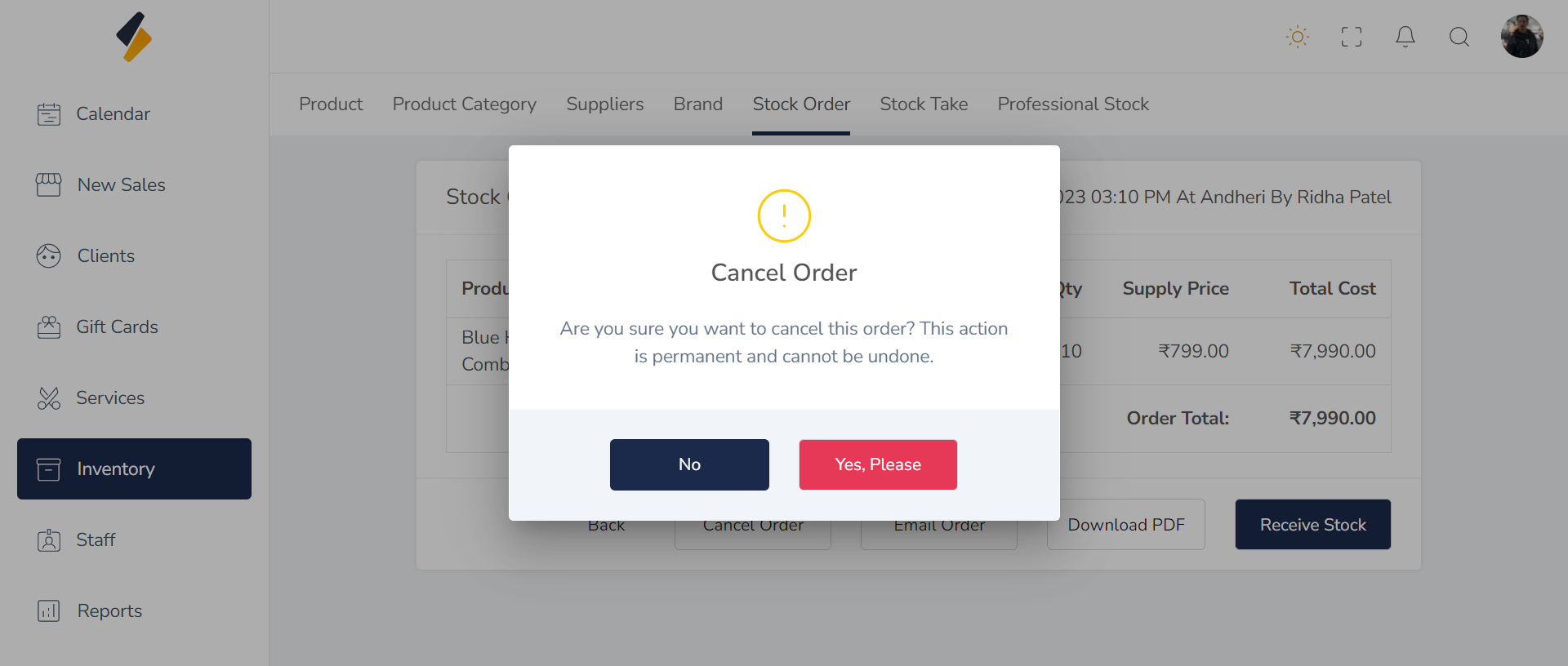
- Cancel Order: This option allows you to cancel the stock order if necessary.
- Email Order: You can use this option to send the stock order to the supplier via email.
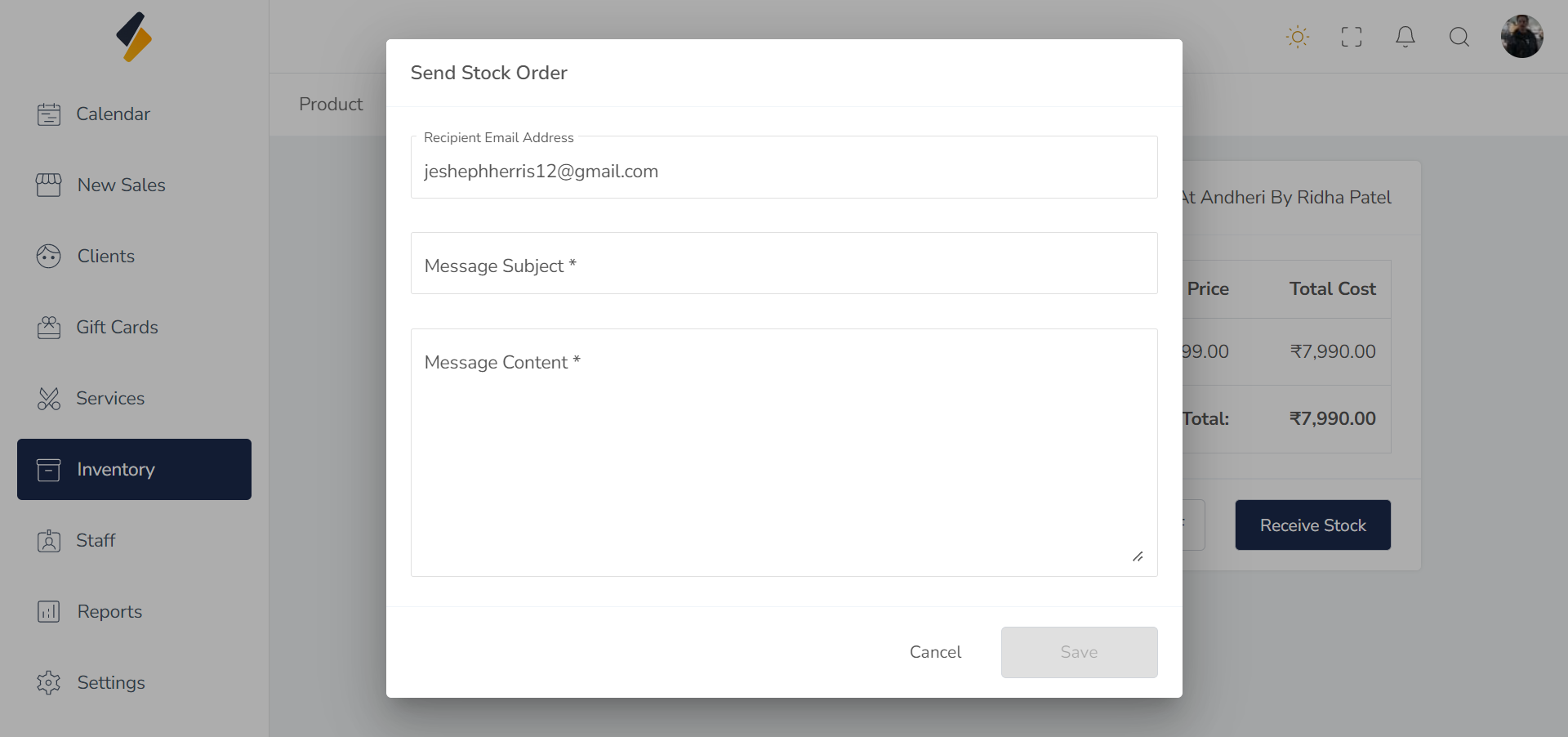
- Download PDF: You can download a PDF version of the stock order for your records or to share with others.
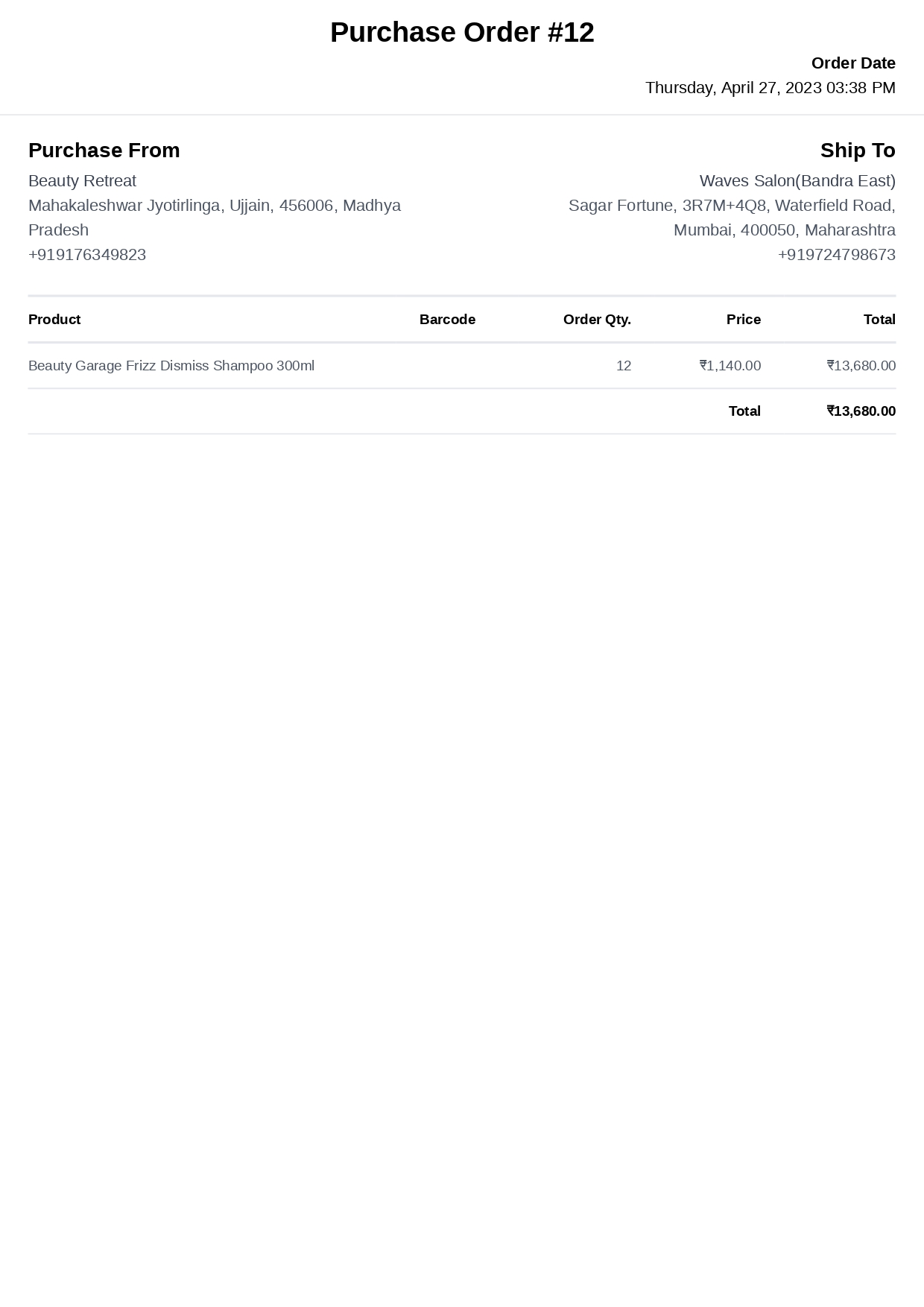
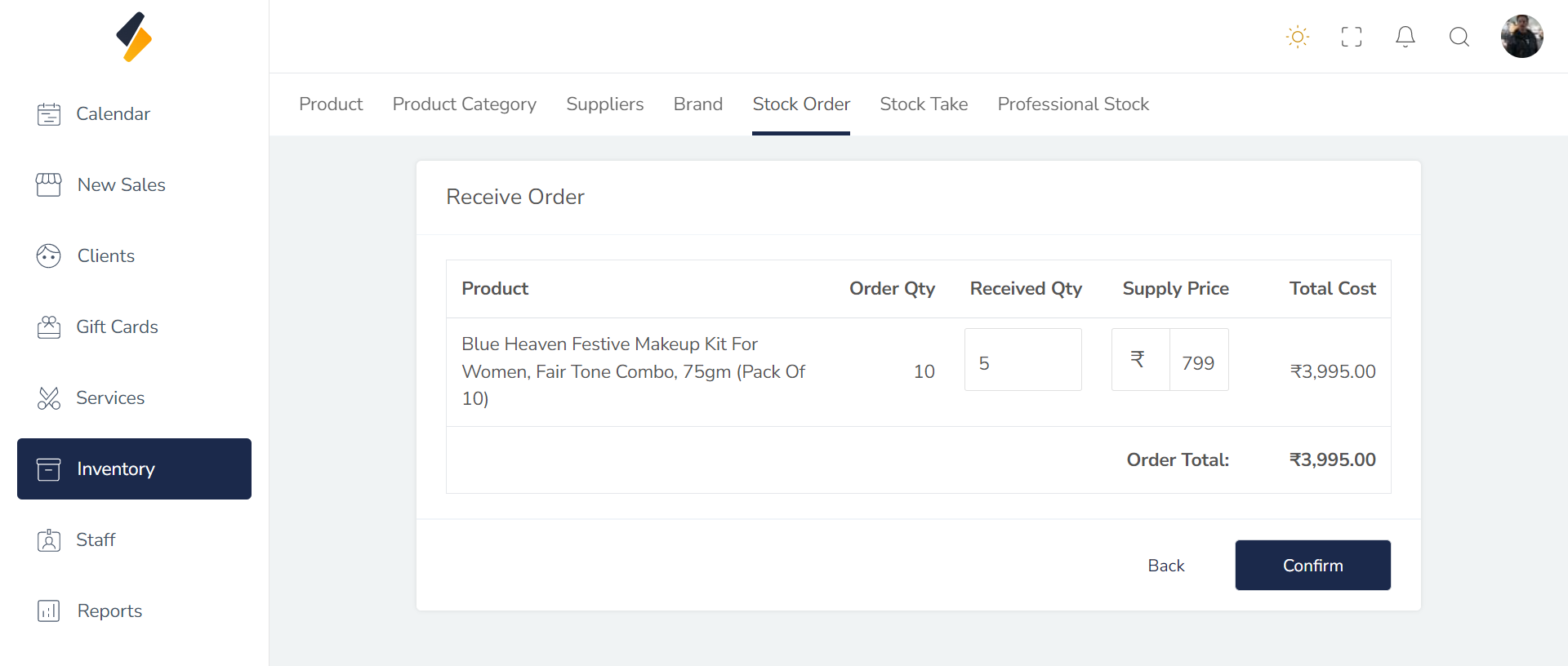
- Receive Stock: Once the order has been delivered, you can use this option to update the inventory and mark the products as received.
- When the stock order is received, it is possible that the full quantity of products ordered may not be delivered. In this case, you can update the quantity of products that were actually received in the inventory system. This allows for accurate tracking of stock levels and helps to prevent overstocking or stockouts.
- after received quantity update click on "confirm" button.