
How to creat a new stock order?
Here's a step-by-step guide to adding a new Stock Order to your salon software.
1. Navigate to the Stock Order Option:
- Once you have logged in, Select the Inventory option from the sidebar to open the stock Order page.
- Click on the Stock Order tab to view the list of available stock order.
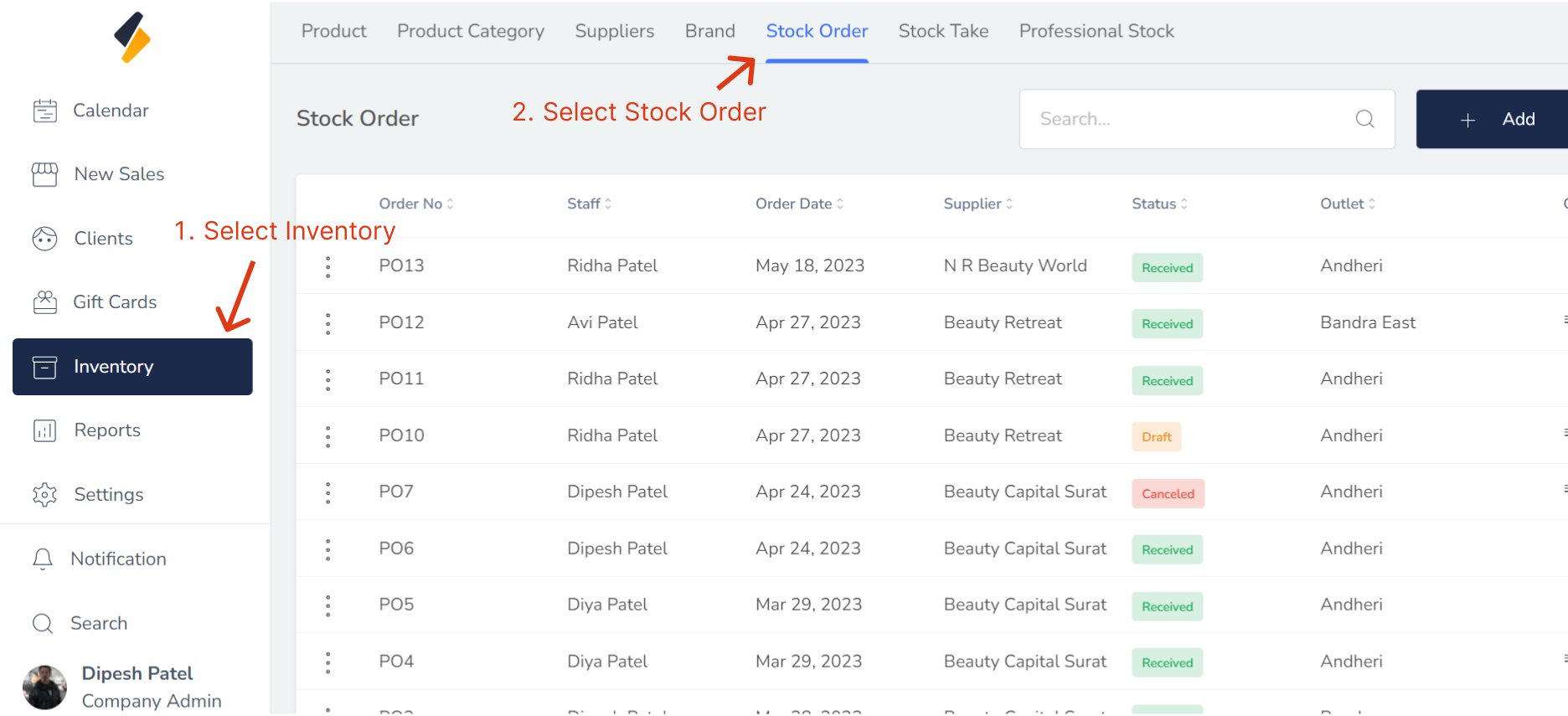
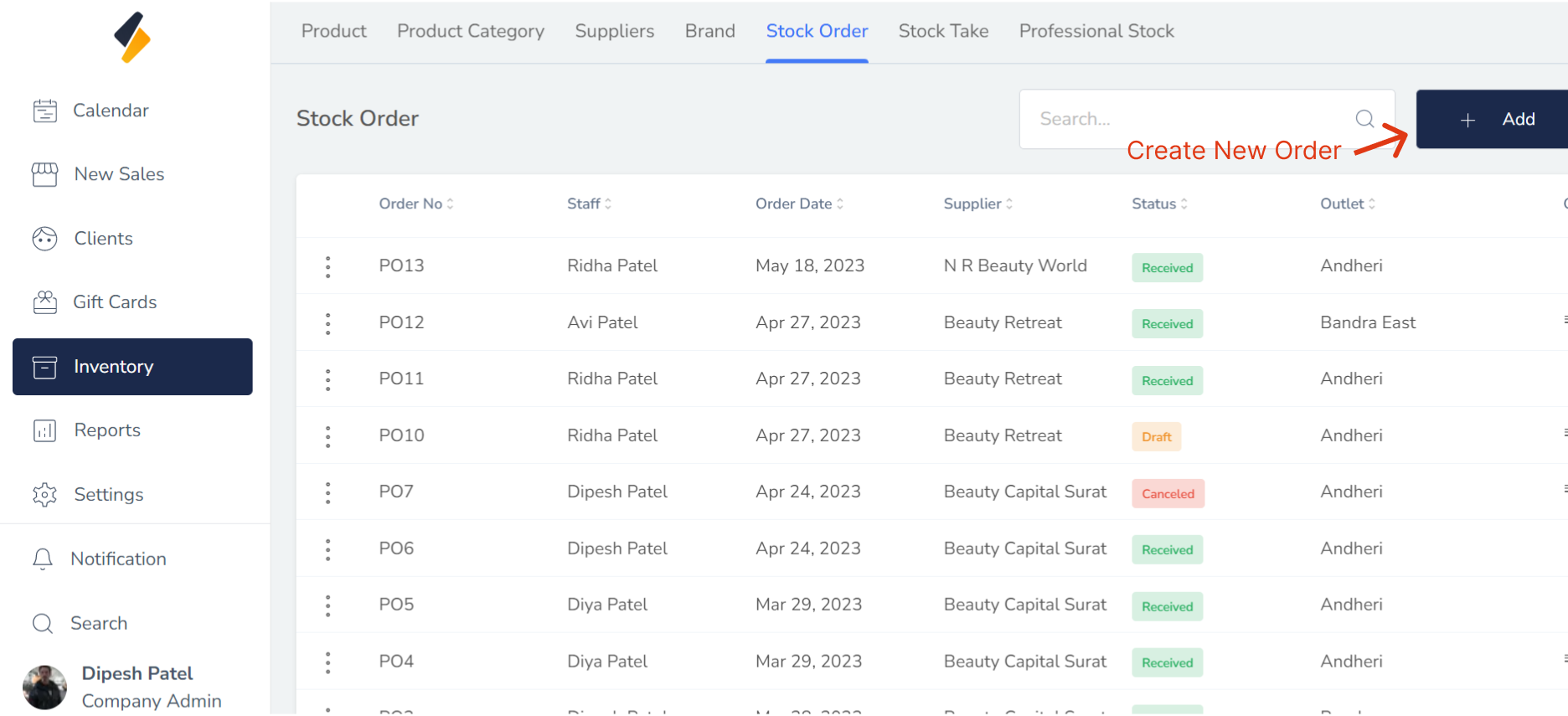
2. Create a New Stock Order:
Click on the "+Add" button to create a new Stock Order.
3. Fill in the necessary Product details:
Enter all the required details such as Product name.
- Staff Member : Select the staff member who is responsible for creating the order.
- Supplier: Select the supplier from whom the products will be ordered.
- Outlet: the outlet or store where the products will be received
- Date of order: the date on which the order is created.
- Product Stock: a list of the products and quantities to be ordered from the supplier.
- When creating a stock order, you can select multiple products and specify the quantity you wish to order for each product.
- The product price will be automatically filled in based on the price listed for that product.
- Make sure to double-check that all information is accurate and up-to-date.
6. Click on the "Draft" button
If you do not want to place the stock order immediately, you can click on the "Draft" button and the order will be saved as a draft. This allows you to come back to the order at a later time and make any necessary changes before finalizing it.
7. Click on the "Create Order" button
Finally, click on the "Create Order" button to create order.

By following these steps, you can easily create order for product.