
How to add a new service?
Here's a step-by-step guide to adding a new service to your salon software.
1. Navigate to the Service Option:
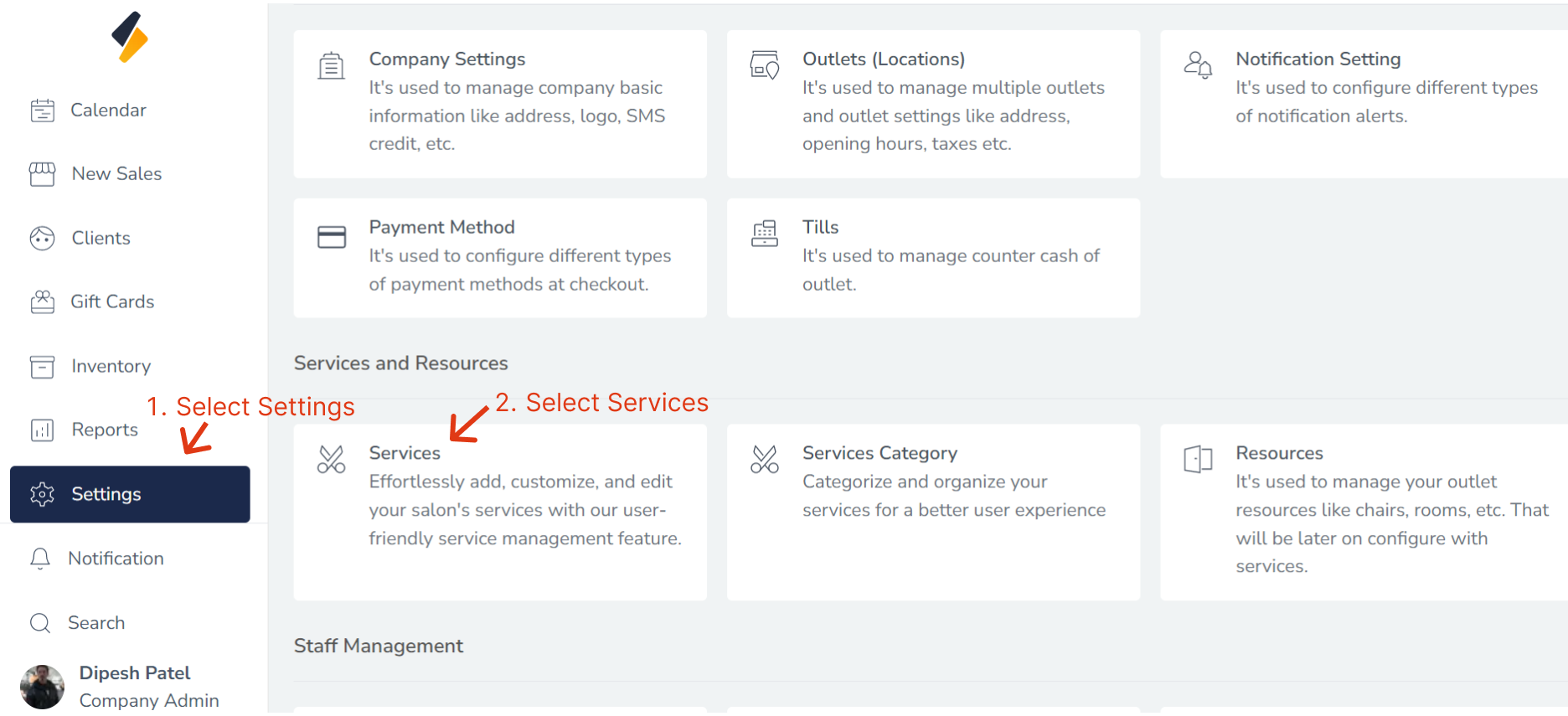
- Once you have logged in, Select the Settings option from the sidebar.
- Click on Services option from "Service and Resource"
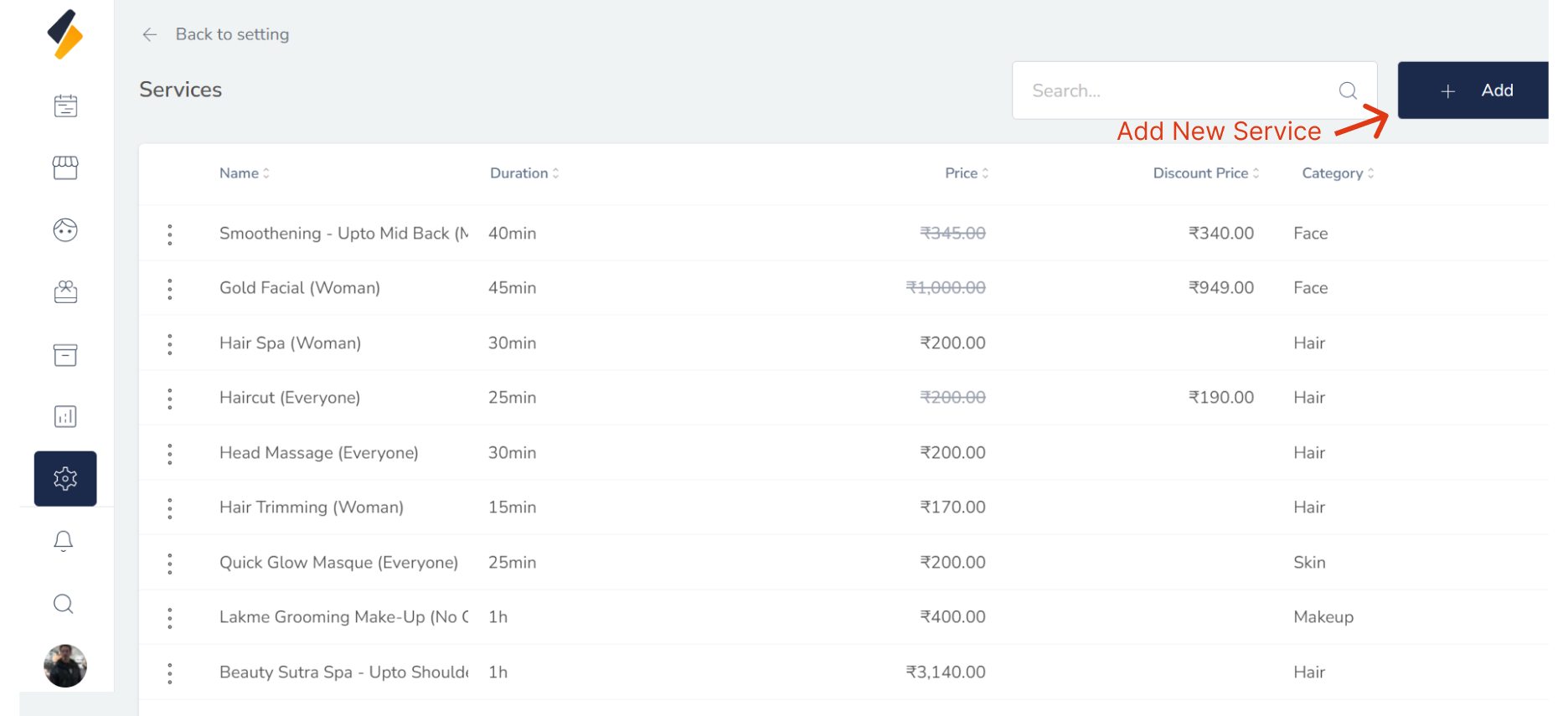
2. Add a New services:
Click on the "+Add" button to add a new service to the list.
3. Fill in the necessary service details:
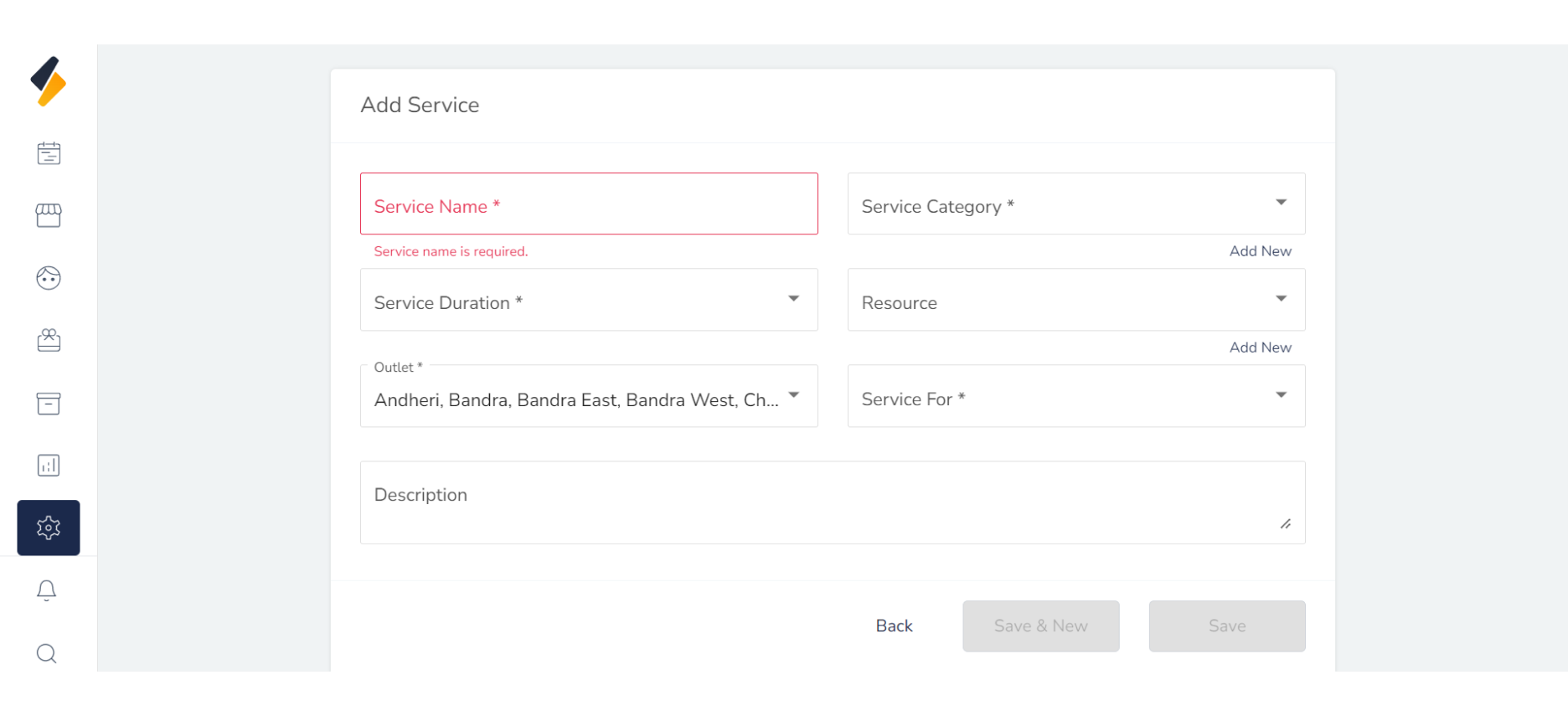
Enter all the required details such as service name, Category, Duration, Resource, Outlet, Service For and Retail Price. *
- service Name : A general Name of service.
- Service Category: The general category of the service.
- Service Duration: The length of time the service takes to complete.
- Resource: The tools, equipment, or products required to perform the service.
- Outlet:The physical location where the service is available.
- ServiceFor: The target audience or intended client for the service.(Man,Woman,Everyone)
- Description: A brief overview of the service and what it entails.
- Discount Price: Any promotional or discounted price for the service.
- Tax Setting:(Outlet Wise): The tax rate applied to the service, which may vary by outlet.
- Retail Price: The standard price for the service.
- Staff: The personnel who are trained and authorized to provide the service.
- Contra Indication: Any precautions or warnings that should be considered before offering the service.
- Service Color: The color associated with the service, which may be used for branding or identification purposes.
- Service Status:(Active/Inactive) Whether the service is currently active or inactive.
- Online Booking:(Active/Inactive) Whether the service can be booked online.
- Internal Activity Only: (Active/Inactive) Whether the service is only available for internal use.
- Exclude From Reminder: (Active/Inactive) Whether reminders for the service should be excluded from notifications or alerts.
Make sure to double-check that all information is accurate and up-to-date.
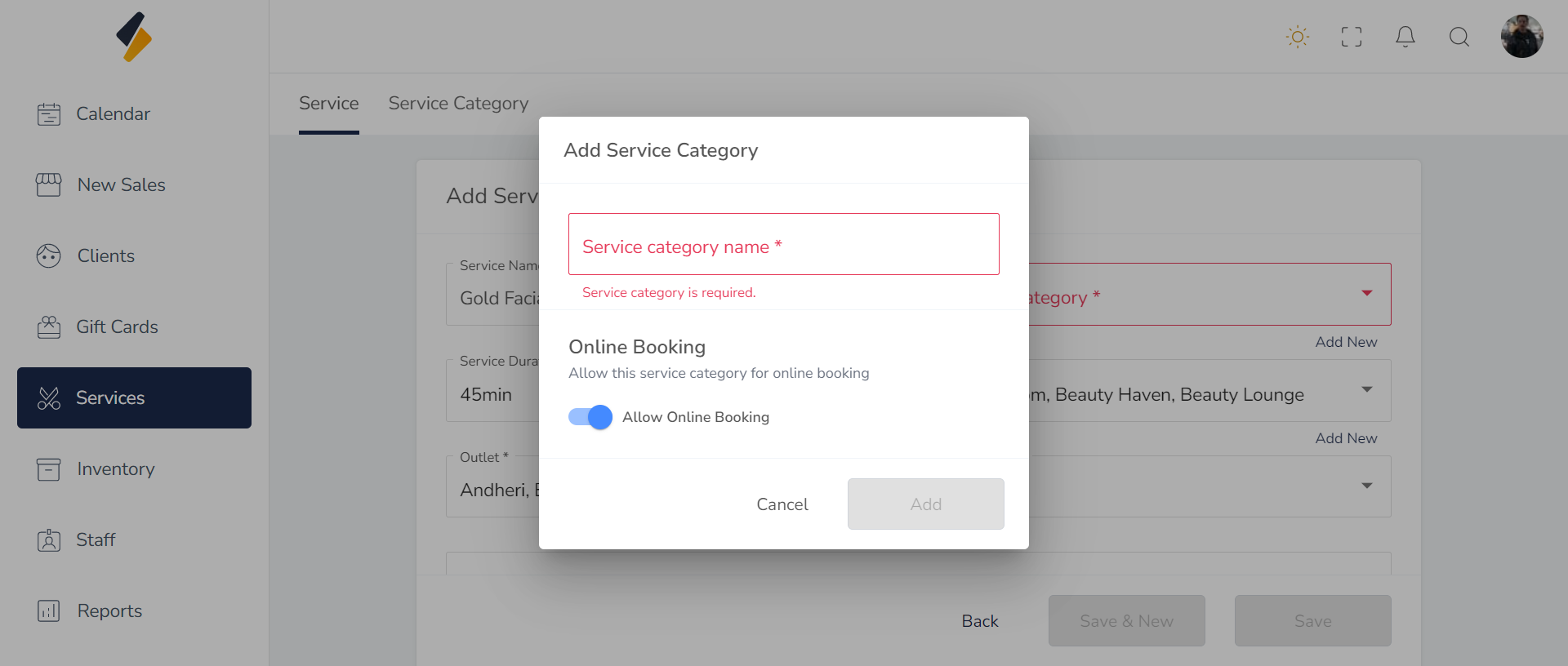
4. Directly, add a new service category and resource
If you want to add a new service category and resource, click on the "Add new" button of bottom Of related textbox and open the modal to add the category and resource.
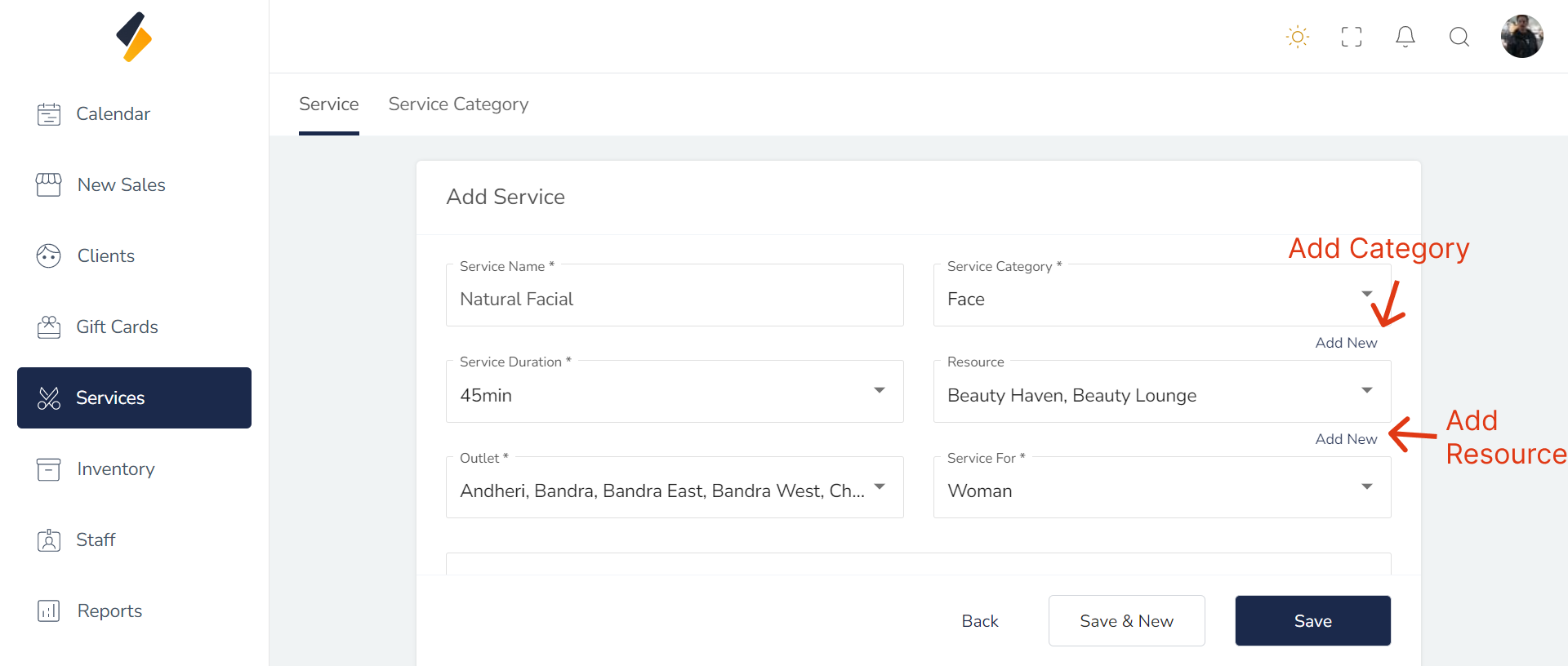 After Click on "Add New" button Open Modal and add category,Same like for resource.
5. Click on the "Save" button
Finally, click on the "Save" button to save the new service along with all its details.
By following these steps, you can easily add a new service to your list and manage it efficiently.