
How to add a new product?
Here's a step-by-step guide to adding a new Product.
1. Navigate to the Product Option:
- Once you have logged in, Select the Inventory option from the sidebar to open the Product page.
- Click on the Product tab to view the list of available Product.
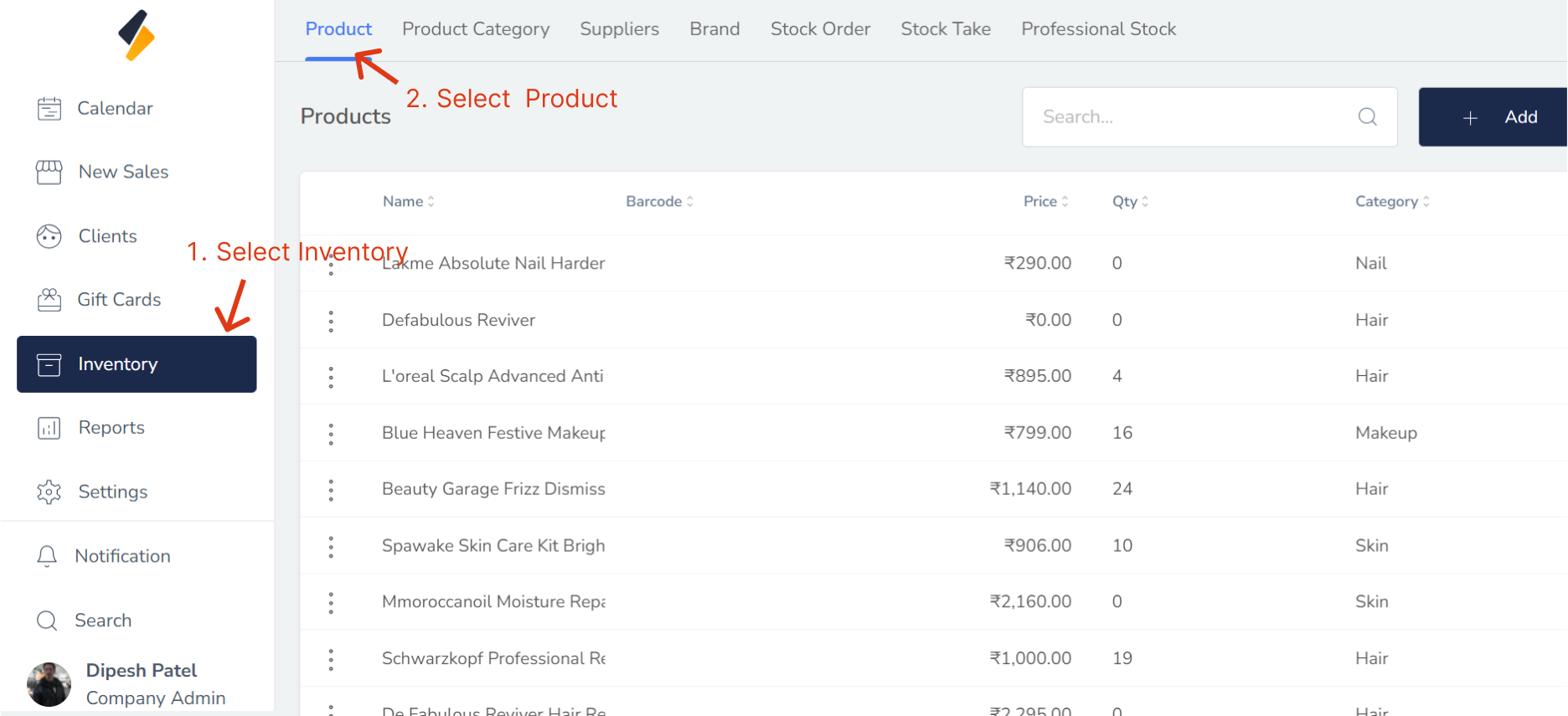
2. Add a New Product:
Click on the "+Add" button to add a new Product to the list.
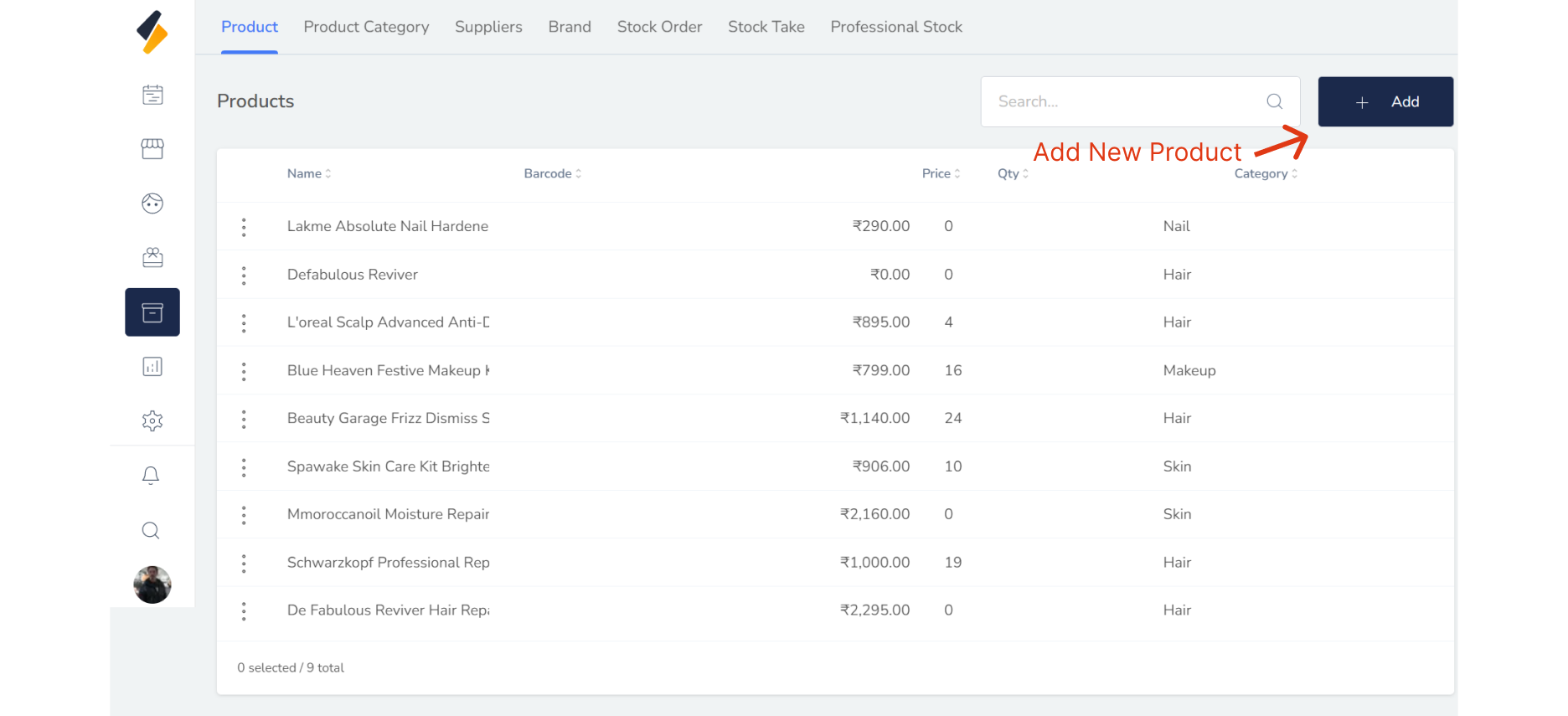
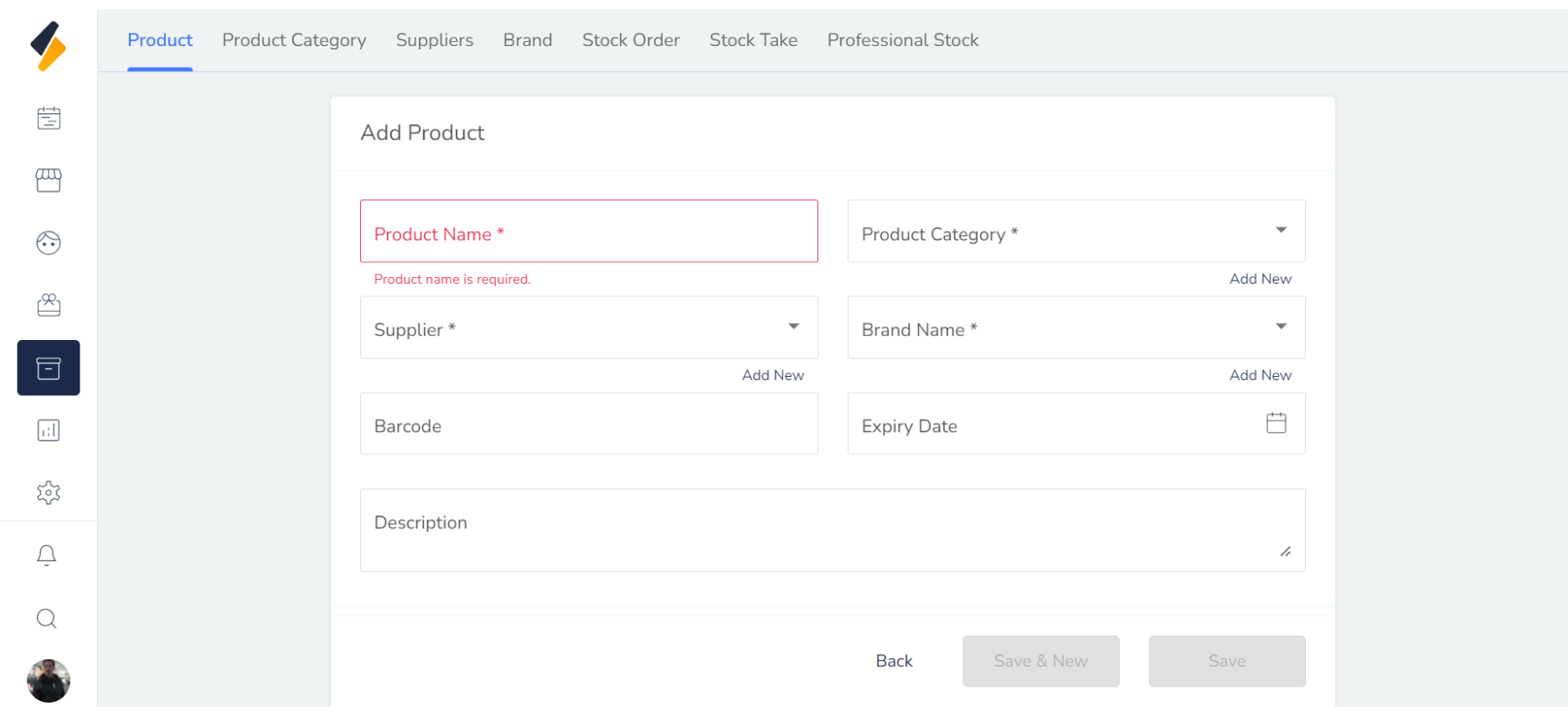
3. Fill in the necessary Product details:
Enter all the required details such as Product name.
- Product Name : The name of the product being sold.
- Product Category: : The category or type of product that the item belongs to, such as face, hair or care etc.
- Supplier: The company or individual that provides the product to the seller.
- Brand: The name of the brand that the product belongs to.
- Barcode: A unique code that is used to identify the product in the inventory system.
- Expiry Date: The date on which the product is no longer safe or effective to use.
- Description: A brief description of the product, including its features, benefits, and any other important information.
- Retail Pricing: The price at which the product is sold to customers.
- Discount Pricing: The reduced price at which the product is sold during promotional periods or to certain customers.
- Tax Settings: The tax rate that is applied to the product, Which can be defined for all outlet.
- ReOrders Level: The minimum quantity of the product that should be kept in stock at all times.
- Product Photos: Images of the product that can be used for marketing and display purposes.
- Product Status: The current status of the product, such as in active or InActive.
- Online Booking: Whether the product can be booked online or not.
- Professional Use Only: A label indicating that the product is intended for use by salon only.
Make sure to double-check that all information is accurate and up-to-date.
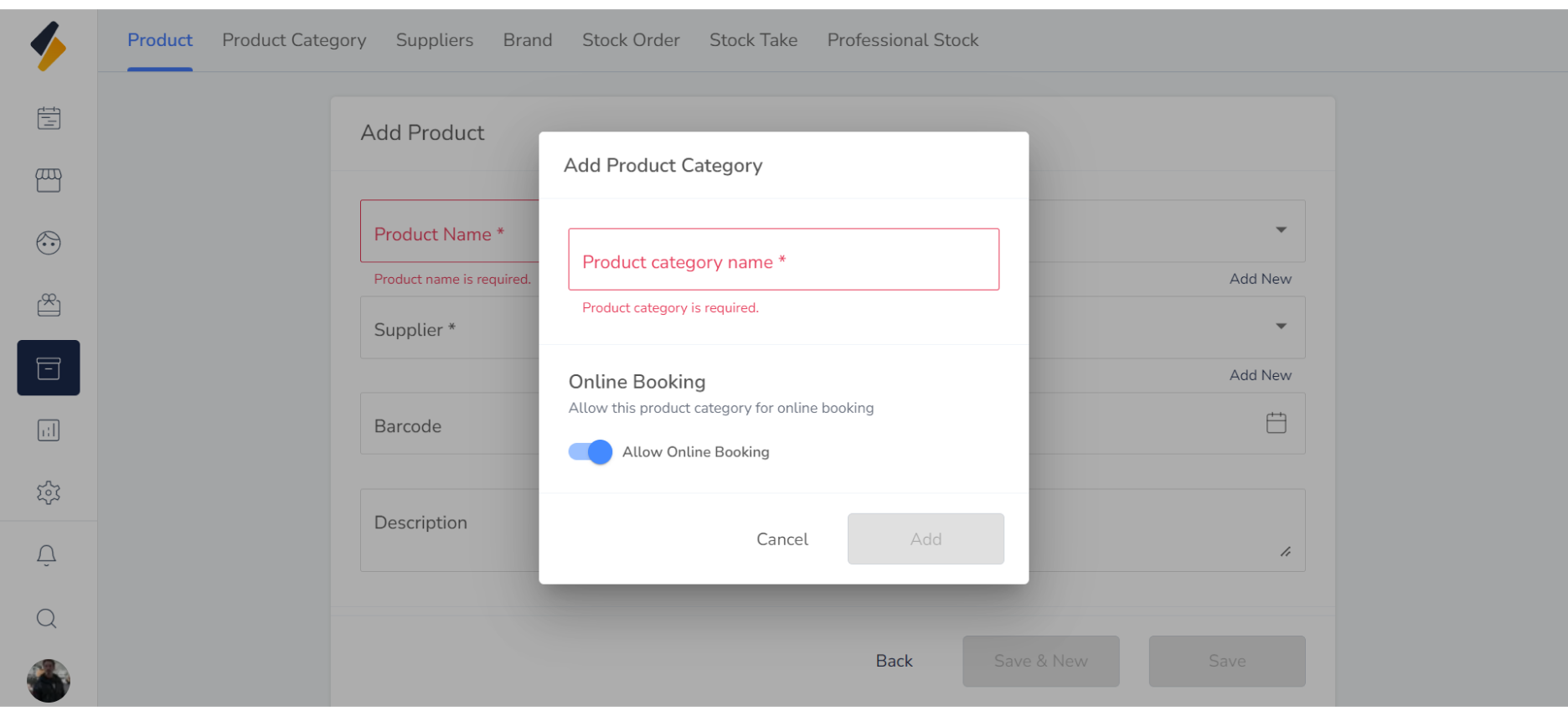
5. Add Category,Brand and supplier Directly.
- You can directly add Product Category, Brand and supplier from this page.
- If you want to add Category click on Add New button of category textbox of bottom side.
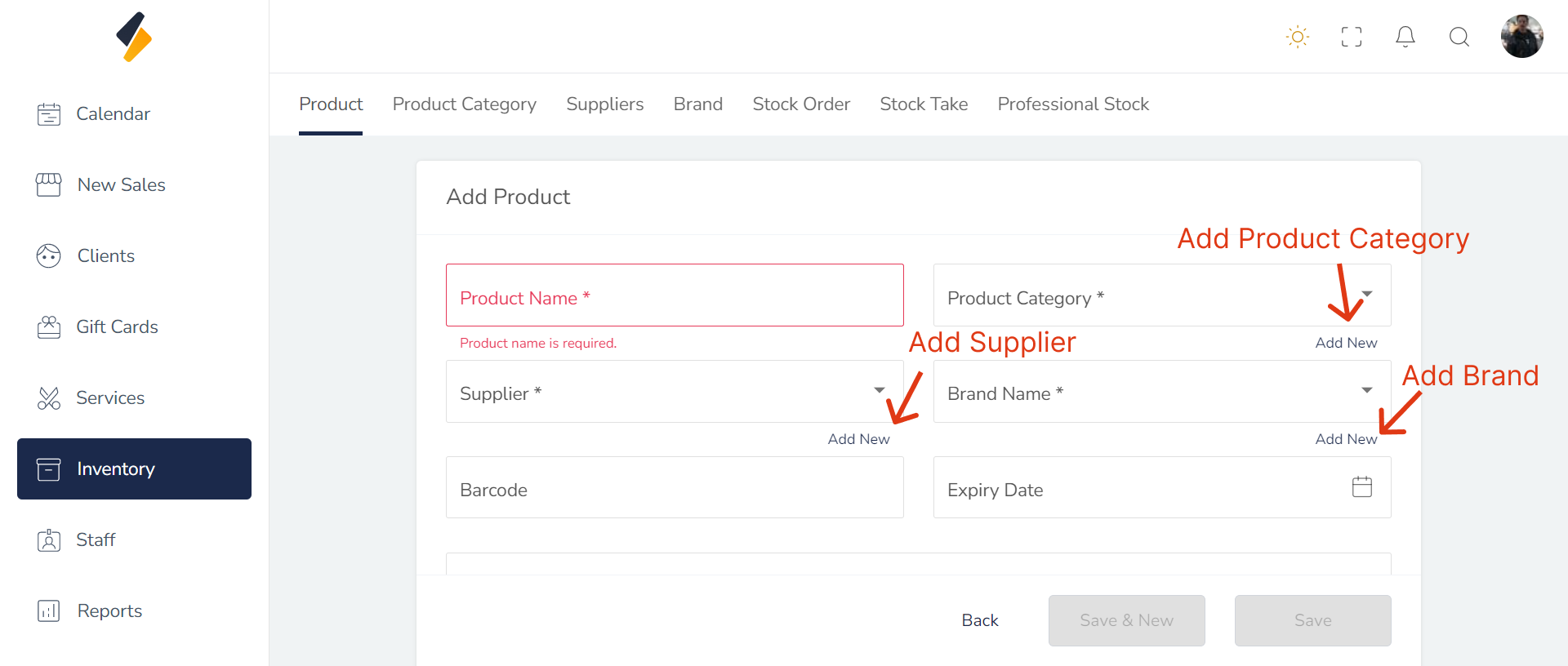
- Once open a modal and add new product category.
6. Click on the "Save" button
Finally, click on the "Save" button to save the new Product along with all its details.
By following these steps, you can easily add a new Product to your list and manage it efficiently.