
How to edit client detail?
Follow these instructions to edit a client:
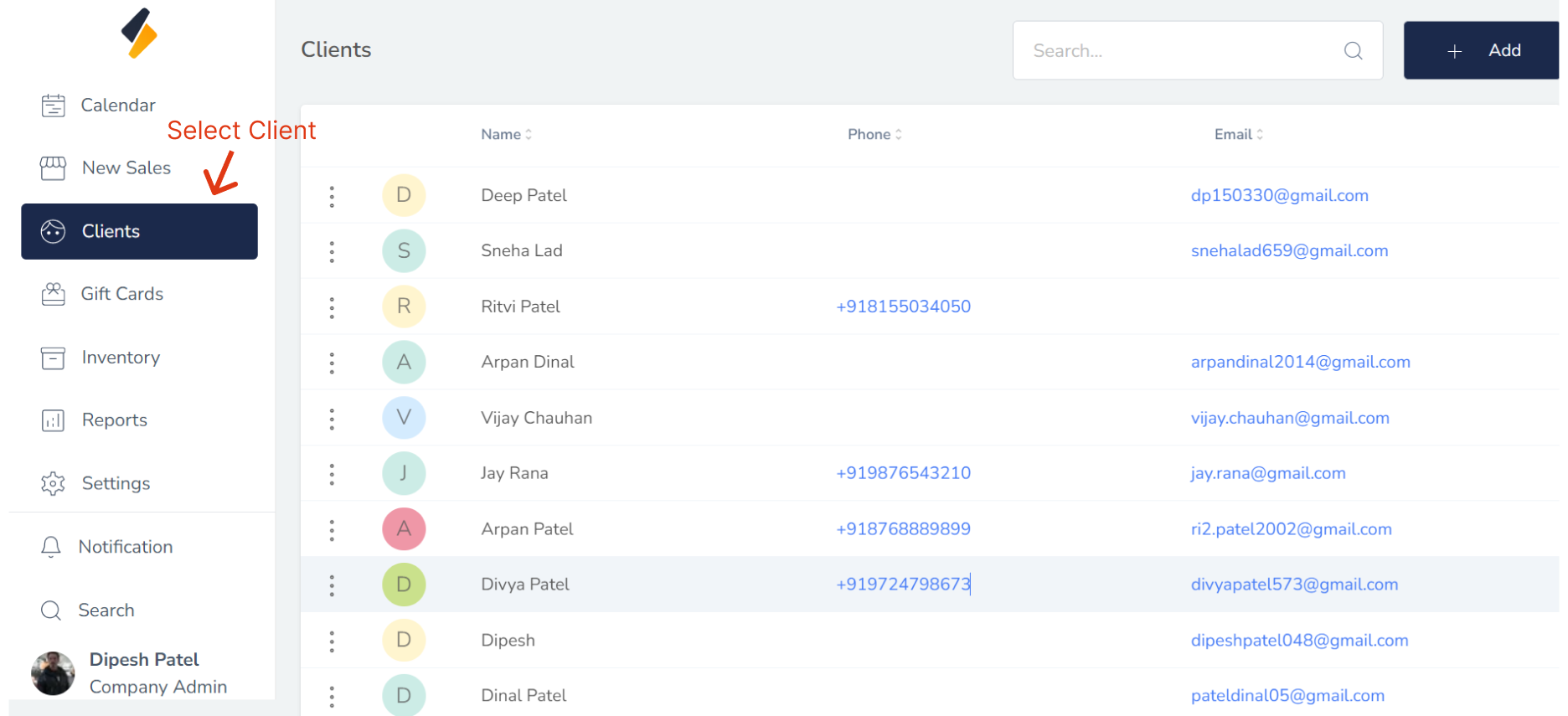
1. Navigate to the Client Section:
Once you have logged in, navigate to the client section of the software.
This may be located under a Clients Menu.
2. Select the Client to Edit:
Locate the client that you want to edit in the client list. Click on their name or select their record.
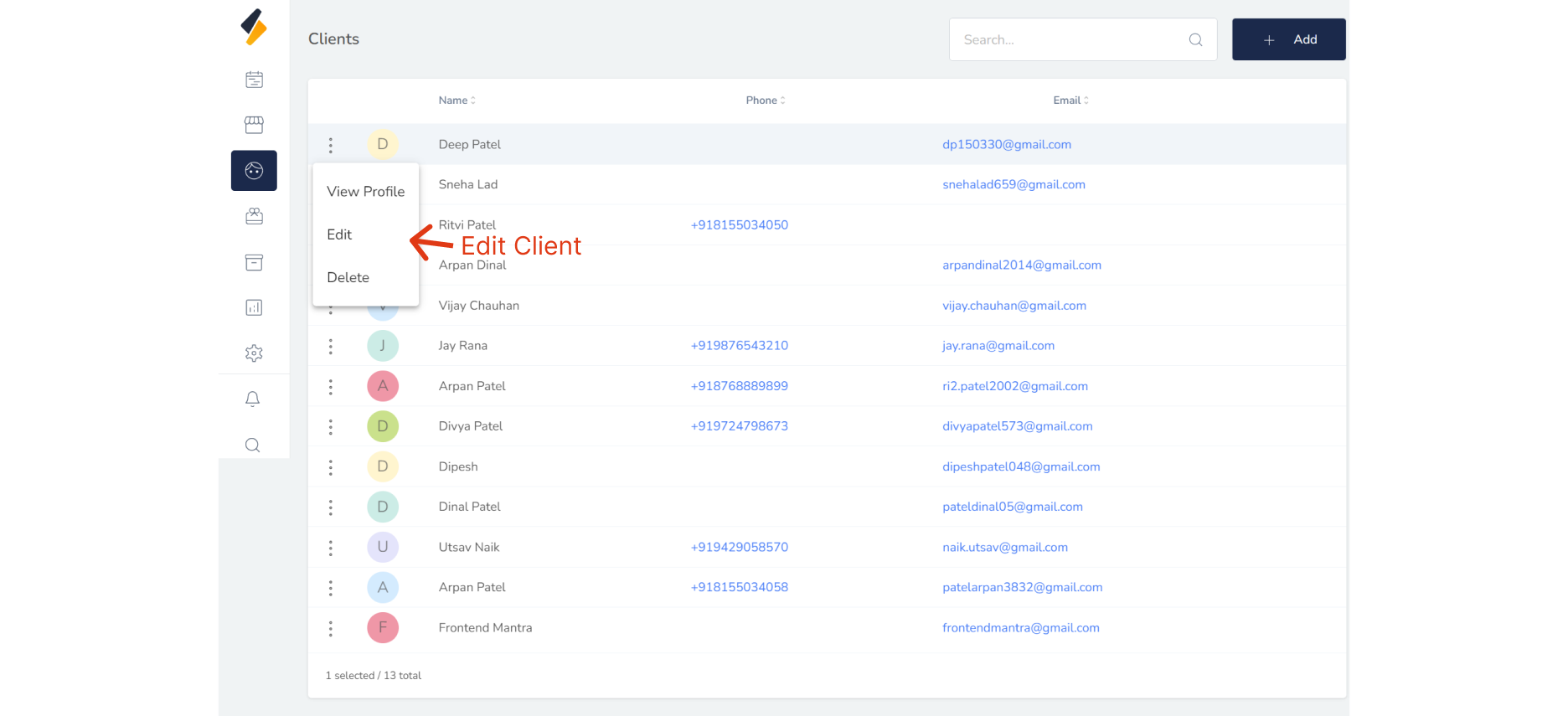
3. Edit the Client's Information:
Once you have selected the client to edit, you should be able to see their existing information. Edit the client's information as needed, such as their name, contact information, or notes. Make sure to double-check all changes before submitting.
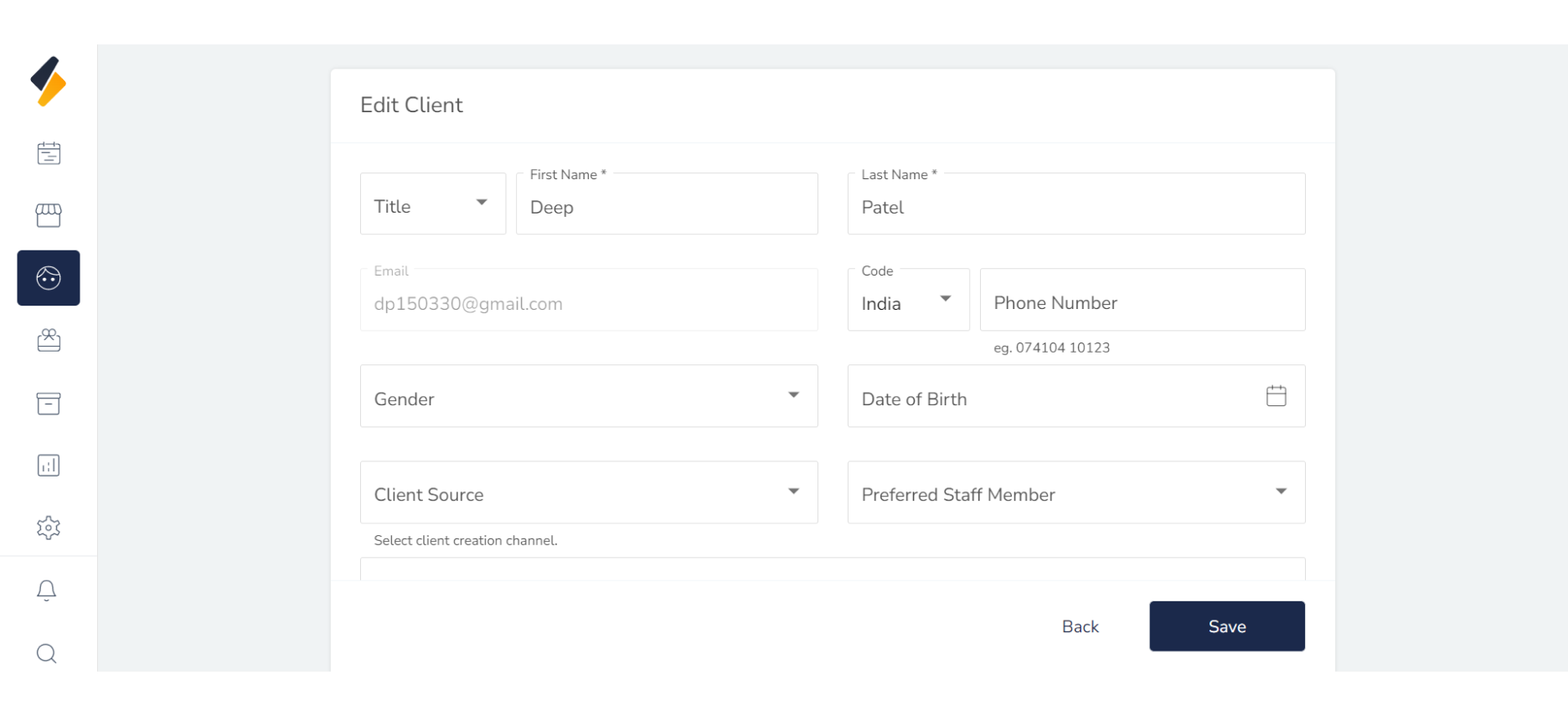
4. Save the Client's Information:
Once you have made all the necessary changes, click on the "Save" button. This will save the updated client's information to the salon software.
Congratulations! You have successfully edited a client in the salon software. If you have any questions or issues, consult the software documentation or contact technical support.