
How to add a new cancellation reason?
Here's a step-by-step guide to adding a new cancellation reason to your salon software.
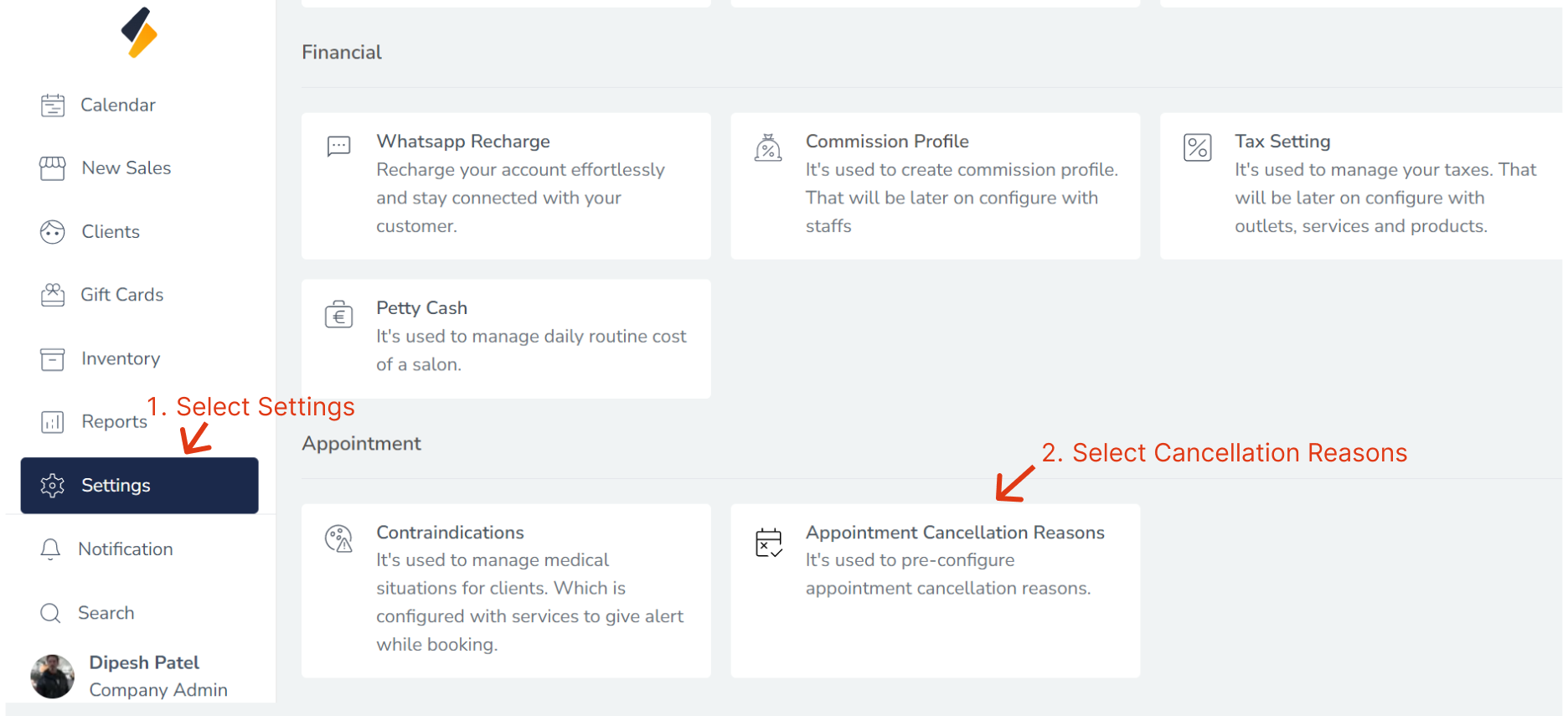
1. Navigate to the Cancellation Reason Section:
- Once you have logged in, Select the Settings option from the sidebar.
- Click on Appointment Cancellation Reasons option from Appointment.
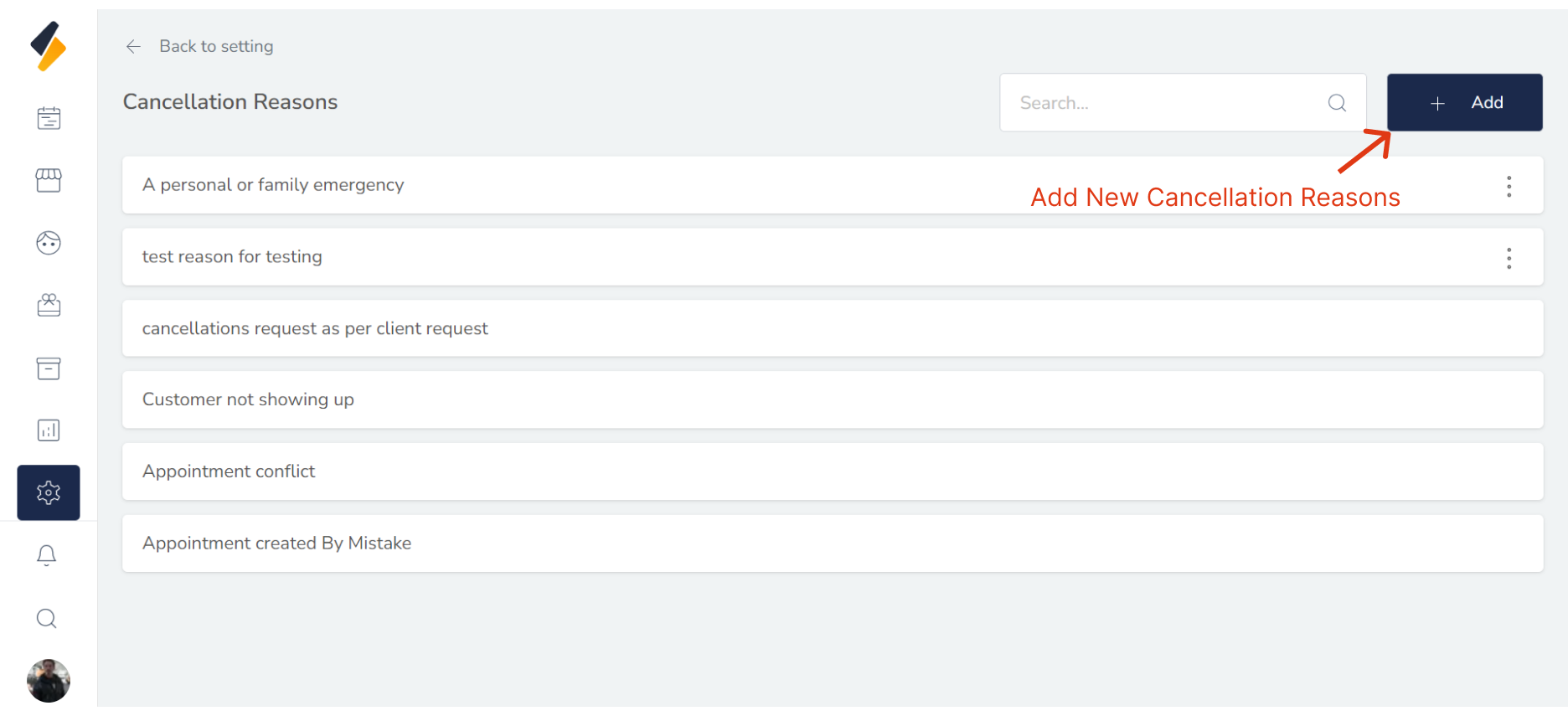
2. Add a New cancellation reason:
Click the "+ Add" button to begin adding a new Cancellation Reason to your system.
3. Enter the cancellation reason Settings Information:
Enter the Cancellation Reason's information into the appropriate fields, including:
-
- Description : Description of Cancellation Reason
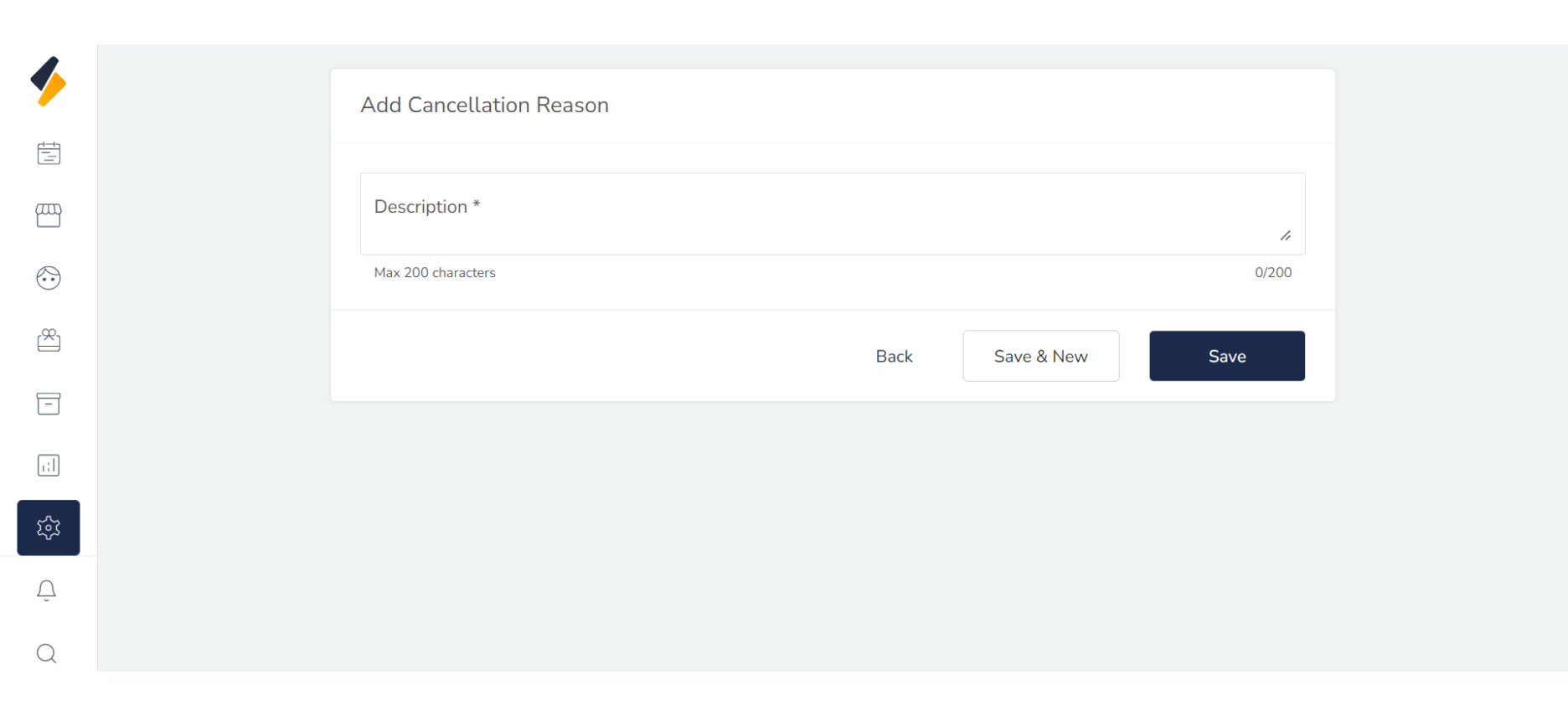 Finally, click on the "Save" button to save the new cancellation reason along with all its details.
- Description : Description of Cancellation Reason
By following these steps, you can easily add a new cancellation reason to your list and manage it efficiently.