
How to delete a brand?
Follow these instructions to delete a Brand in the salon software:
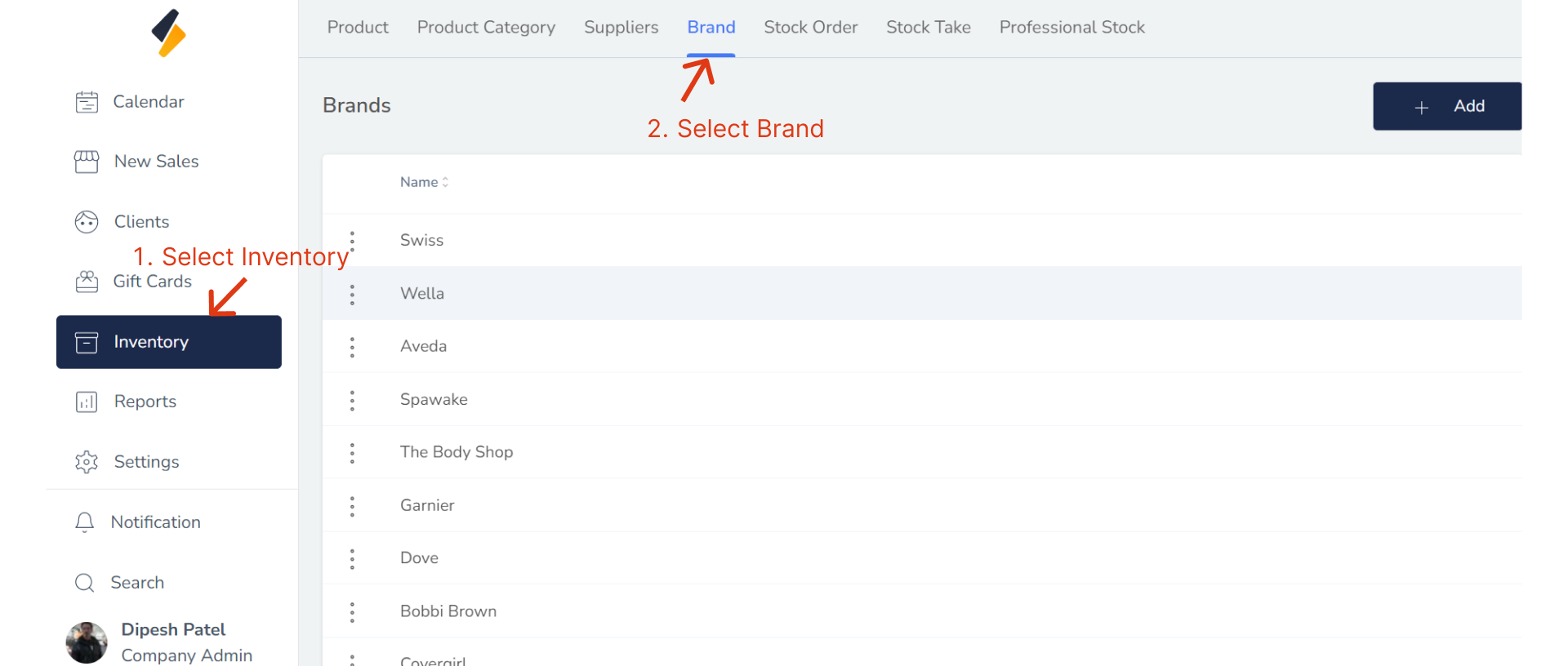
1. Navigate to the Brand Option:
- Once you have logged in, Select the Inventory option from the sidebar to open the Brand page.
- Click on the Brand tab to view the list of available Brand.
2. Select the Brand to Delete:
Locate the Brand that you want to delete in the Brand list. Click on their name or select "Delete" option.
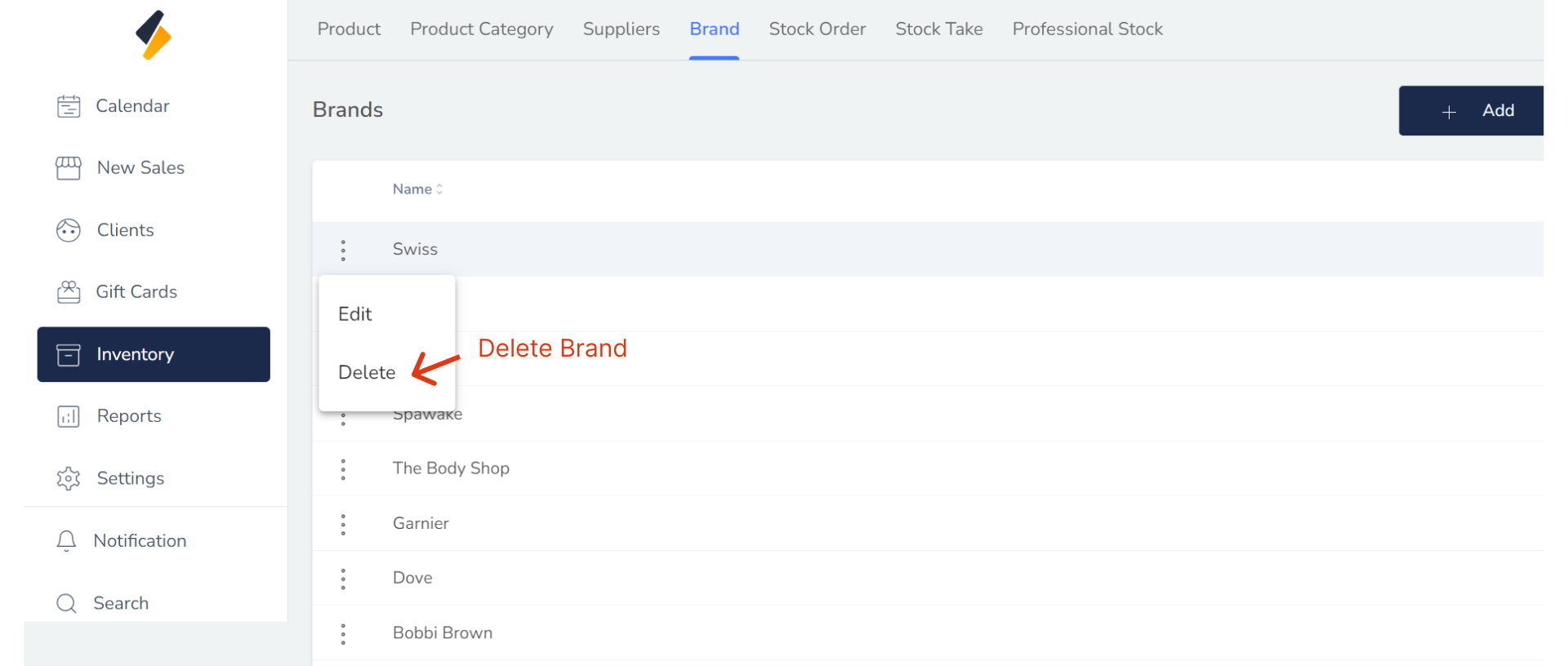
3. Delete the Brand Information:
To delete the Brand, click on the "Yes,Delete" button. This should open a confirmation prompt asking if you are sure you want to delete the Brand. Confirm that you want to delete the Brand.
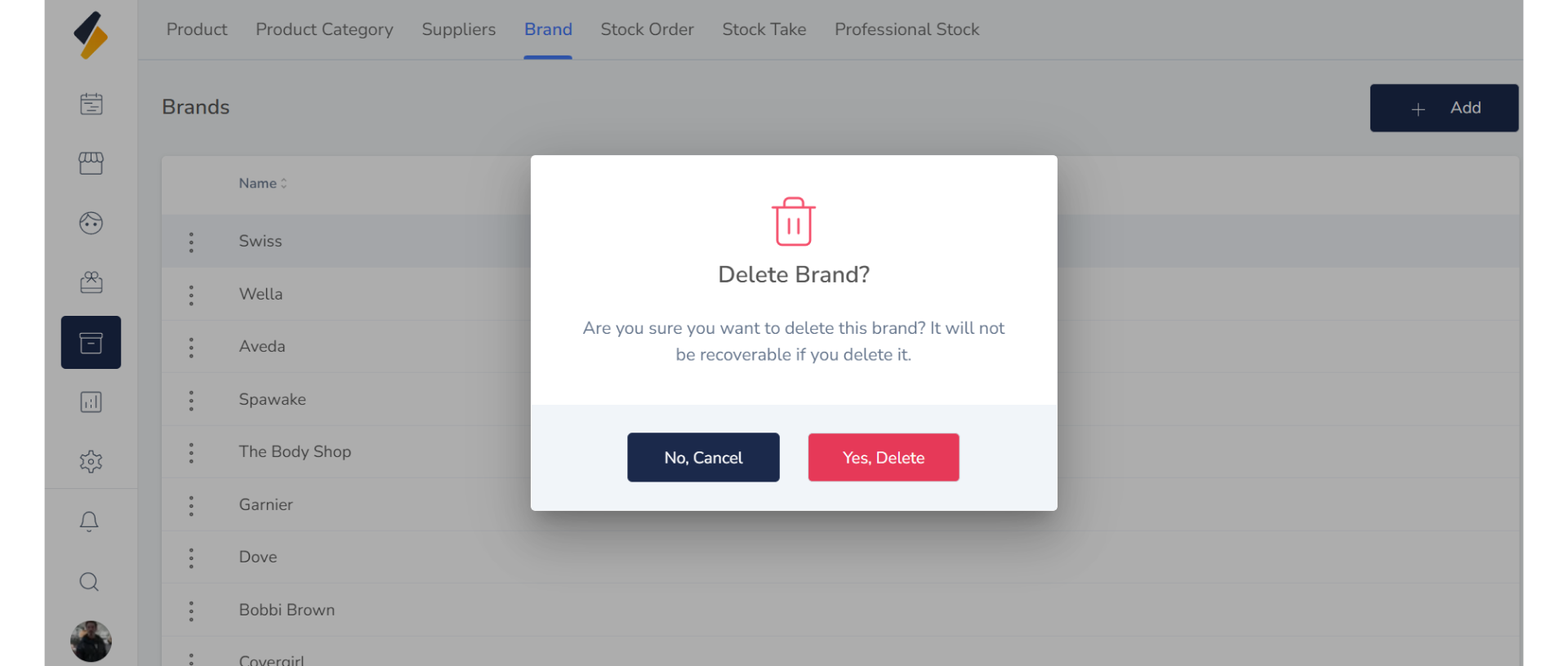
4. Confirm the Brand Deletion:
After deleting the Brand, confirm that their information has been removed from the salon software. Check that they no longer appear in the Brand list or other relevant sections of the software.
Congratulations! You have successfully deleted a Brand from the salon software.